
Back to plugins 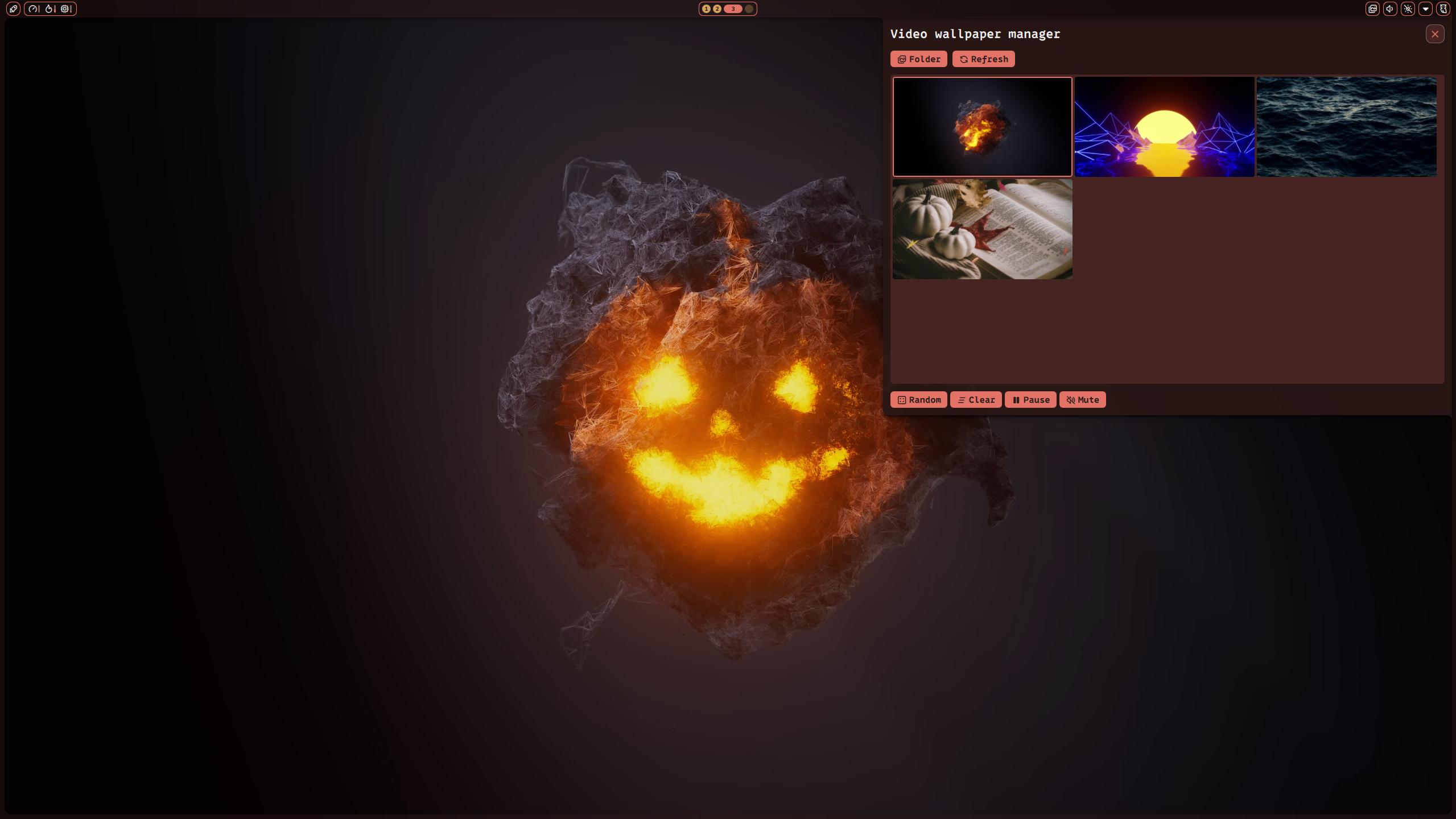
Video Wallpaper
A plugin that uses a backend renderer to play videos as your wallpaper.
v2.0.9 spiros132 MIT May 8, 2026
About
Video Wallpaper
A plugin to have a video as your wallpaper. Uses either Qt6 Multimedia or mpvpaper as rendering backends with multi-monitor support.
Features
- Backend Support: Choose between Qt6 Multimedia or mpvpaper for video rendering.
- Multi-Monitor Support: Support for independent wallpaper configuration per monitor.
- Noctalia Color Scheme: Uses Noctalia's built in theming.
Requirements
- Noctalia Shell: 3.6.0 or later
- Backend Renderer (choose whichever one works best for you):
qt6-multimedia- Qt native video engine.mpvpaper- MPV-based wallpaper renderer.
- ffmpeg - Required for thumbnail generation. (Usually already installed)
IPC Commands
This plugin exposes several IPC commands for integration with other tools or scripts:
Wallpaper Control
# Set a specific wallpaper (all monitors), note the empty "" at the end!
qs -c noctalia-shell ipc call plugin:videowallpaper setWallpaper "/path/to/video.mp4" ""

# Set a specific wallpaper on specific monitor
qs -c noctalia-shell ipc call plugin:videowallpaper setWallpaper "/path/to/video.mp4" "DP-1"

# Get the current wallpaper (all monitors), note the empty "" at the end!
qs -c noctalia-shell ipc call plugin:videowallpaper getWallpaper ""

# Get the current wallpaper on a specific monitor
qs -c noctalia-shell ipc call plugin:videowallpaper getWallpaper "DP-1"

# Set a random wallpaper from the wallpapers folder
qs -c noctalia-shell ipc call plugin:videowallpaper random

# Clear the video wallpaper from the background
qs -c noctalia-shell ipc call plugin:videowallpaper clear
State Management
# Toggle the video wallpaper on/off
qs -c noctalia-shell ipc call plugin:videowallpaper toggleEnabled

# Enable the video wallpaper
qs -c noctalia-shell ipc call plugin:videowallpaper setEnabled true

# Disable the video wallpaper
qs -c noctalia-shell ipc call plugin:videowallpaper setEnabled false

# Get the enabled state of the video wallpaper
qs -c noctalia-shell ipc call plugin:videowallpaper getEnabled
Playback Controls
# Play/pause the video (all monitors), note the "" at the end!
qs -c noctalia-shell ipc call plugin:videowallpaper togglePlaying ""

# Play/pause the video for a specific monitor
qs -c noctalia-shell ipc call plugin:videowallpaper togglePlaying "DP-1"

# Play the video (all monitors), note the "" at the end!
qs -c noctalia-shell ipc call plugin:videowallpaper resume ""

# Play the video for a specific monitor
qs -c noctalia-shell ipc call plugin:videowallpaper resume "DP-1"

# Pause the video (all monitors), note the "" at the end!
qs -c noctalia-shell ipc call plugin:videowallpaper pause ""

# Pause the video for a specific monitor
qs -c noctalia-shell ipc call plugin:videowallpaper pause "DP-1"
Audio Controls
# Mute/unmute the video (all monitors), note the "" at the end!
qs -c noctalia-shell ipc call plugin:videowallpaper toggleMute ""

# Mute/unmute the video for a specific monitor
qs -c noctalia-shell ipc call plugin:videowallpaper toggleMute "DP-1"

# Mute the video (all monitors), note the "" at the end!
qs -c noctalia-shell ipc call plugin:videowallpaper mute ""

# Mute the video for a specific monitor
qs -c noctalia-shell ipc call plugin:videowallpaper mute "DP-1"

# Unmute the video (all monitors), note the "" at the end!
qs -c noctalia-shell ipc call plugin:videowallpaper unmute ""

# Unmute the video for a specific monitor
qs -c noctalia-shell ipc call plugin:videowallpaper unmute "DP-1"

# Set volume for the video, must be in the range of [0-1] (all monitors), note the "" at the end!
qs -c noctalia-shell ipc call plugin:videowallpaper setVolume 0.7 ""

# Set volume for the video for a specific monitor
qs -c noctalia-shell ipc call plugin:videowallpaper setVolume 0.7 "DP-1"

# Increase volume for the video (all monitors), note the "" at the end!
qs -c noctalia-shell ipc call plugin:videowallpaper increaseVolume ""

# Increase volume for the video for a specific monitor
qs -c noctalia-shell ipc call plugin:videowallpaper increaseVolume "DP-1"

# Decrease volume for the video (all monitors), note the "" at the end!
qs -c noctalia-shell ipc call plugin:videowallpaper decreaseVolume ""

# Decrease volume for the video for a specific monitor
qs -c noctalia-shell ipc call plugin:videowallpaper decreaseVolume "DP-1"
Panel Management
# Open the panel in the current active monitor
qs -c noctalia-shell ipc call plugin:videowallpaper openPanel
Troubleshooting
Videos not playing
- Ensure you have the selected backend installed (qt6-multimedia or mpvpaper).
- Check that ffmpeg is installed.
- Verify that you have selected a wallpaper to display.
Performance issues
Playing a video wallpaper takes A LOT of resources from your system. There are some things you can try out:
- Try out the other backend and see if that one works better for you.
- If using mpvpaper, set the profile to fast, and try enabling the hardware acceleration.
- Reduce the video resolution of the video playing.
Multi-monitor setup
If you want your monitors to have different wallpaper configurations, go to the plugin settings and enable the monitor-specific settings. Then choose the different settings for your different monitors.
Acknowledgments
- Author: spiros132 spiros.siarapis@gmail.com
- Thank you to the Noctalia Shell team for such an amazing desktop environment!