
Valent Connect
A plugin integrating your mobile devices into a panel using Valent
About
📱 Valent Connect Plugin for Noctalia
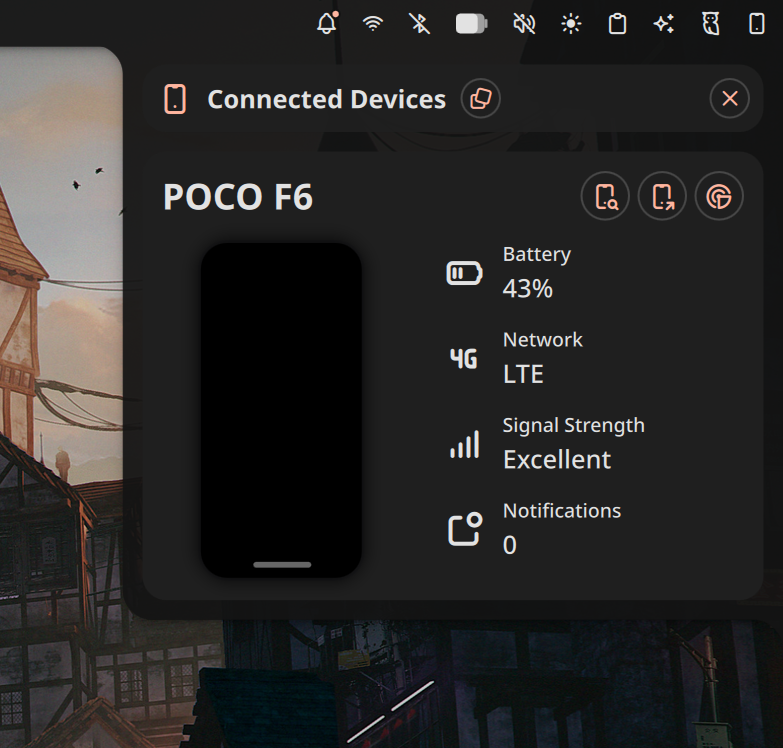
Integrate your mobile devices via the Valent backend. This plugin provides a seamless UI to interact with your phone, powered by Valent (an implementation of the KDE Connect protocol for GNOME/GTK environments).
What's New (v1.2.0) ✨
- 🚀 Reliable Refresh: Improved device discovery logic to ensure a single tap correctly updates the device list and status.
- 🎨 Improved Animation: Stabilized the header layout and implemented a smoother, more reliable refresh animation.
- ⚖️ License & Attribution: Properly relicensed under GPLv2 and added formal credit to the original KDE Connect plugin author, WerWolv.
Requirements
Packages:
valent- the daemon (AUR:valent)gvfs- for SFTP mountinggvfs-mtporgvfs-backends- GVfs backends including SFTPopenssh- for SSH agent
SFTP & SSH Agent Setup:
Valent uses GVfs for SFTP mounting. This requires an active SSH agent to manage keys.
Enable SSH Agent: Recent GNOME installations move the SSH agent to a separate service. Enable it if not already running:
systemctl --user enable --now gcr-ssh-agent.socket
Environment Configuration:
Add the following to your shell profile (e.g., ~/.zshenv or ~/.bashrc):
export SSH_AUTH_SOCK="$XDG_RUNTIME_DIR/gcr/ssh"
Verify Setup:
echo $SSH_AUTH_SOCK  # Should show /run/user/1000/gcr/ssh
ssh-add -l           # Should connect to the agent without error
Start the Daemon:
You can start Valent manually or via systemd:
systemctl --user enable --now valent
# OR
valent --gapplication-service
Niri Example (~/.config/niri/config.kdl):
If you use the Niri compositor, ensure the environment variables are imported:
environment {
    SSH_AUTH_SOCK "/run/user/1000/gcr/ssh"
}

spawn-at-startup "systemctl" "--user" "import-environment" "SSH_AUTH_SOCK"
spawn-at-startup "valent" "--gapplication-service"
Phone Setup
- Install the KDE Connect app on your phone (Android/iOS).
- Ensure your phone and desktop are on the same network.
- Open the Valent Connect panel in Noctalia.
- Select your device and click Pair.
- Accept the pairing request on your phone.
Features 🌟
- 🔋 Battery Tracking: Real-time battery level and charging status.
- 📶 Connectivity Info: Signal strength and network type (5G, LTE, etc.).
- 🔔 Find My Phone: Ring your device remotely.
- 📡 Send Ping: Test connection with a notification.
- 📁 File Sharing: Send files from your PC to your phone.
- 📂 Browse Files: Mount and browse your phone's filesystem via SFTP.
- 💬 Notifications: View the number of active notifications on your device.
- 🔄 Manual Refresh: Trigger device discovery and update device state with a single tap.
Troubleshooting
- Device not appearing: Ensure both devices are on the same network and the Valent daemon is running (
systemctl --user status valent). - SFTP not working:
- Verify
SSH_AUTH_SOCKis correctly set. - Check if the phone's SFTP plugin is enabled in the KDE Connect app.
- Manually test mounting:
gio mount sftp://PHONE_IP:1739/.
- Verify
- Logs: Check Valent logs for errors:
journalctl --user -u valent -f.
Credits 💖
This plugin is heavily based on the excellent KDE Connect plugin created by WerWolv.
A huge thank you to WerWolv for their incredible work on the original implementation, on which this plugin is heavily based on.
Note: This plugin is licensed under the GNU General Public License v2.0. It is designed specifically for the Valent backend and does not require or use the kdeconnectd daemon.