
Back to plugins 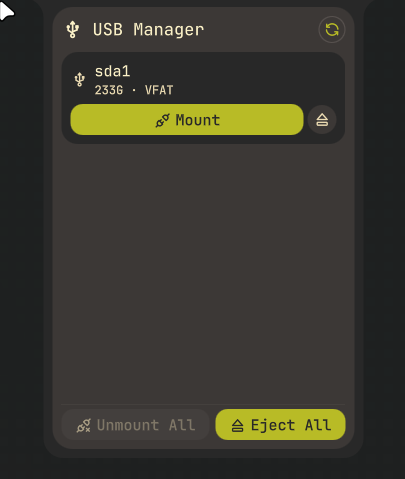
USB Drive Manager
Manage USB drives: detect, mount, unmount, safely eject, and browse files
v1.4.0 hennifant MIT May 1, 2026
About
USB Drive Manager
A Noctalia bar widget for managing USB drives and removable storage devices.
Features
- Auto-detection – Monitors udev events in real-time; the bar icon updates instantly when a USB drive is plugged in or removed
- Mount / Unmount – Mount and unmount partitions via
udisksctl - Safe Eject – Unmounts the partition and powers off the parent disk (
udisksctl power-off) to prevent data loss - File Browser – Open any mounted drive directly in your configured file manager
- Copy Path – Copy the mountpoint path to the clipboard
- Storage Usage – Visual progress bar showing used/free space per device
- Device Info – Shows volume label, filesystem type, size, vendor/model
- Bulk Actions – "Unmount All" and "Eject All" buttons in the panel
- Auto-Mount – Optional: automatically mount drives when plugged in
- Notifications – Toast notifications for all mount/unmount/eject events
- i18n – English and German translations included
System Requirements
| Tool | Package (Gentoo) | Purpose |
|---|---|---|
udisksctl |
sys-fs/udisks |
Mount, unmount, power-off |
udevadm |
sys-fs/eudev or sys-apps/systemd-utils |
Real-time device monitoring |
lsblk |
sys-apps/util-linux |
Device enumeration |
df |
sys-apps/coreutils |
Disk usage statistics |
wl-copy |
gui-apps/wl-clipboard |
Copy path to clipboard (optional) |
Settings
| Setting | Default | Description |
|---|---|---|
| Auto-mount | false |
Automatically mount drives when plugged in |
| File browser | yazi |
Command to open the file manager (e.g. yazi, ranger, xdg-open, dolphin, thunar, nautilus) |
| Notifications | true |
Show toast notifications |
| Hide when empty | false |
Hide bar icon when no devices connected |
| Icon color | none |
Custom icon color |
Usage
- Left-click the bar icon to open the device panel
- Right-click for quick actions (Refresh, Unmount All, Eject All, Settings)
- In the panel, each device card shows:
- Device label, size, filesystem type
- Mountpoint path (when mounted)
- Storage usage bar
- Action buttons: Open / Mount / Unmount / Eject / Copy Path
IPC
# Refresh device list from a running Noctalia session
qs -c noctalia-shell ipc call plugin:usb-drive-manager refresh

# Unmount all devices
qs -c noctalia-shell ipc call plugin:usb-drive-manager unmountAll
Notes
- Only USB and removable devices are shown (filtered via
lsblkTRAN/RM fields) - The "Eject" action first unmounts the partition, then powers off the parent disk
- Disk usage is updated ~1 second after device enumeration
- udevadm events are debounced (800ms) to avoid rapid re-queries during partition table reads
Tested & Limitations
Tested filesystems
ext4btrfsvfat/fat32ntfsvia kernelntfs3driver
For NTFS volumes:
- A working NTFS implementation is required (e.g.
CONFIG_NTFS3_FSin the kernel, optionallyntfs3g). - Volumes must be cleanly unmounted by Windows. If the NTFS volume is marked dirty or hibernated (Fast Startup / Sleep),
ntfs3refuses to mount it andudisksctlwill fail with a "wrong fs type / volume is dirty" error. The plugin intentionally does not force-mount such volumes; runchkdskon Windows and disable Fast Startup instead.
Not implemented (yet)
- No built-in LUKS / encrypted volume unlock flow (encrypted devices that are unlocked externally and show up in
lsblkbehave like normal mounted devices). - No special handling for network filesystems or non-UDisks-managed devices.