
Tailscale
Show Tailscale status in the menu bar and send/receive files via Taildrop.
About
Tailscale Plugin
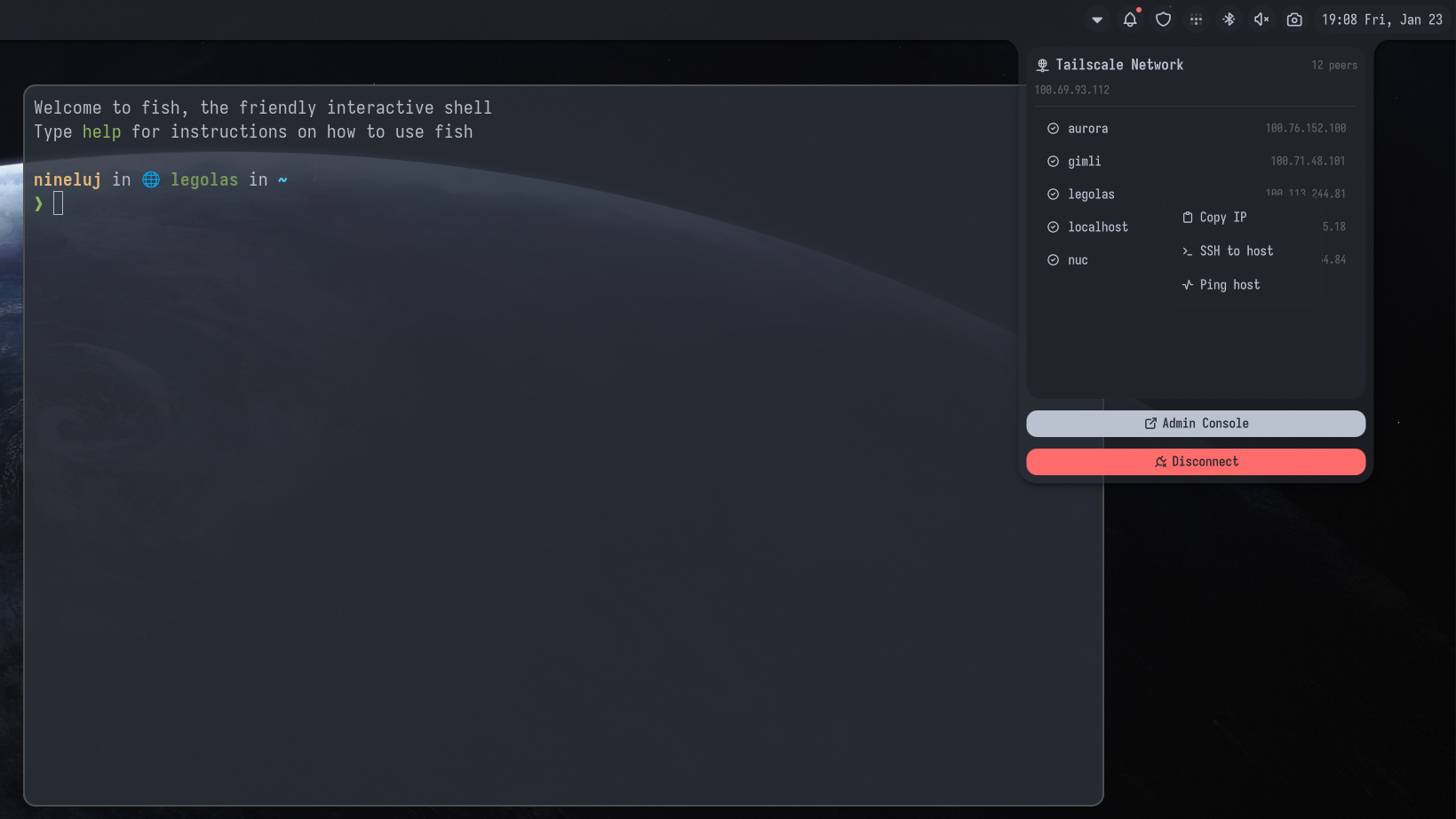
A Tailscale status plugin for Noctalia that shows your Tailscale connection status in the menu bar and lets you send and receive files via Taildrop.
Disclaimer: This is a community-created plugin built on top of the great Tailscale CLI tool. It is not affiliated with, endorsed by, or officially connected to Tailscale Inc.
Features
- Status Indicator: Shows whether Tailscale is connected or disconnected with a visual indicator
- IP Address Display: Shows your current Tailscale IP address when connected
- Peer Count: Displays the number of connected devices in your tailnet
- Quick Toggle: Click to connect/disconnect Tailscale
- Peer Context Menu: Right-click a peer in the panel to copy its IP or FQDN, launch SSH/ping actions, use it as an exit node, or send a file via Taildrop
- Node Search: Optionally filter the panel node list by hostname, DNS name, Tailscale name, IP address, or OS
- Taildrop Receive: Toggle file receiving from the panel
- Exit Node Management: Activate/deactivate exit nodes from the panel
- Account Switching: When multiple Tailscale accounts are logged in locally, a dropdown appears in the panel to switch between them via
tailscale switch - Context Menu: Right-click for additional options (connect, disconnect, refresh, settings)
- Configurable Refresh: Customize how often the plugin checks Tailscale status
- Compact Mode: Option to show only the icon for a minimal display
Requirements
- Tailscale must be installed on your system
- Tailscale must be set up and authenticated
Taildrop
Taildrop lets you send and receive files between your Tailscale nodes directly from the panel.
Receiving files
tailscale file get normally requires root. The plugin offers two modes, configurable in settings, and a master toggle to disable Taildrop entirely:
| Mode | Setting value | How it works |
|---|---|---|
| Operator (recommended) | operator |
Runs tailscale file get as your own user — no prompt. Requires a one-time setup (see below). |
| pkexec | pkexec |
Runs tailscale file get via pkexec — shows a polkit prompt each time. No setup needed. |
When a receive completes the notification lists each file that appeared in the download directory.
To hide both the Receive button and the Send File option entirely, disable Taildrop in plugin settings.
One-time operator setup
Run this once to grant your user operator rights:
sudo tailscale set --operator=$USER
After that, tailscale file get works without root and the plugin can receive files without any prompt.
Sending files
Right-click any online peer in the panel and choose Send File. A file picker will open; select one or more files and they will be sent via tailscale file cp.
Settings
| Setting | Default | Description |
|---|---|---|
refreshInterval |
5000 ms |
How often to check Tailscale status (1000–60000 ms) |
compactMode |
false |
Show only the icon in the menu bar |
showIpAddress |
true |
Display your Tailscale IP address |
showPeerCount |
true |
Display the number of connected peers |
hideDisconnected |
false |
Hide disconnected peers from the panel list |
hideMullvadExitNodes |
true |
Hide Mullvad VPN exit nodes from the peer list |
showSearchBar |
false |
Show a search field above the panel node list |
terminalCommand |
"" |
Terminal for SSH/ping (e.g. ghostty, alacritty) |
sshUsername |
"" |
Username for SSH connections (leave empty for system default) |
pingCount |
5 |
Number of pings to send when pinging a peer |
defaultPeerAction |
"copy-ip" |
Action when clicking a peer: copy-ip, ssh, or ping |
taildropEnabled |
true |
Enable Taildrop send/receive. When false, hides the Receive button and Send File option. |
taildropDownloadDir |
"~/Downloads" |
Directory where received files are saved |
taildropReceiveMode |
"operator" |
Taildrop receive mode: operator or pkexec |
loginServer |
"" |
Custom login server URL (e.g. Headscale). Leave empty for default Tailscale. |
IPC Commands
You can control the Tailscale plugin via the command line using the Noctalia IPC interface.
General Usage
qs -c noctalia-shell ipc call plugin:tailscale <command>
Available Commands
| Command | Description | Example |
|---|---|---|
toggle |
Toggle Tailscale connection (connect/disconnect) | qs -c noctalia-shell ipc call plugin:tailscale toggle |
togglePanel |
Toggle Tailscale panel | qs -c noctalia-shell ipc call plugin:tailscale togglePanel |
status |
Get current Tailscale status | qs -c noctalia-shell ipc call plugin:tailscale status |
refresh |
Force refresh Tailscale status | qs -c noctalia-shell ipc call plugin:tailscale refresh |
login |
Trigger Tailscale login (opens browser) | qs -c noctalia-shell ipc call plugin:tailscale login |
switchAccount |
Switch to a Tailscale account by id (see tailscale switch --list) |
qs -c noctalia-shell ipc call plugin:tailscale switchAccount a585 |
receive |
Fetch any pending Taildrop files | qs -c noctalia-shell ipc call plugin:tailscale receive |
Usage
- Click the icon to open the Tailscale panel
- Right-click the bar widget to open the context menu (connect/disconnect, settings)
- Right-click a peer in the panel to copy its IP/FQDN, SSH, ping, set as exit node, or send a file
- Search nodes: if enabled in settings, type in the panel search box to filter by hostname, DNS name, Tailscale name, IP address, or OS
- Receive via Taildrop: click "Receive via Taildrop" in the panel to fetch any pending incoming files
Troubleshooting
"Not installed" message
If you see "Tailscale not installed" in the context menu, make sure Tailscale is installed and accessible in your PATH.
Status not updating
If the status doesn't update automatically, try:
- Increasing the refresh interval in settings
- Using the "Refresh" option from the context menu
- Checking that Tailscale is running properly on your system
Cannot connect/disconnect
Ensure that:
- You have proper permissions to control Tailscale
- Tailscale is authenticated and set up
- No other process is interfering with Tailscale
Taildrop receive fails
- Operator mode: make sure you have run
sudo tailscale set --operator=$USERfirst - pkexec mode: ensure
pkexecis installed and a polkit agent is running - Check that the download directory exists and is writable