
Back to plugins 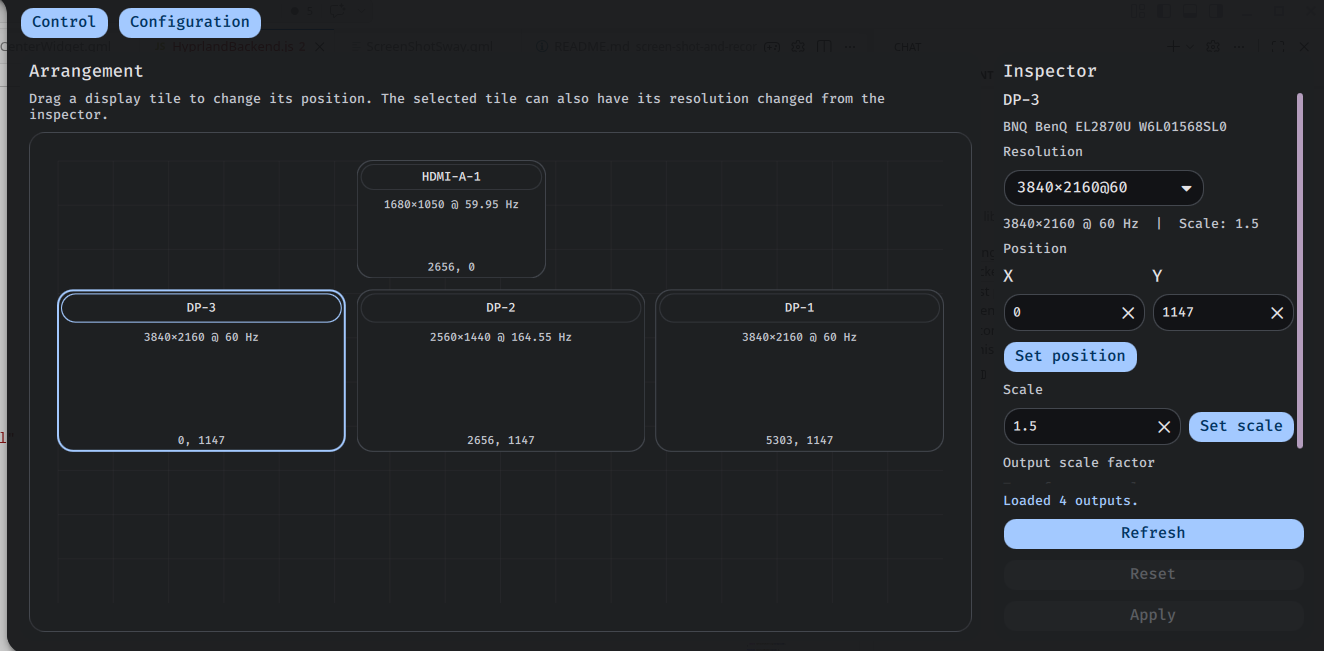
Monitor Layout
Arrange multiple displays visually and change their resolutions from a Noctalia panel.
v1.0.0 Mathew-D MIT Apr 16, 2026
About
Monitor Layout
Monitor Layout is a Noctalia Shell plugin for visually arranging multiple monitors and changing their resolutions, with support for both Sway and Hyprland compositors.
Features
- Auto-detects and supports both Sway (
swaymsg) and Hyprland (hyprctl) backends - Drag monitors in a panel to change their positions
- Change each monitor's resolution, scale, and transform from the inspector
- Apply the draft layout back to your compositor from the same panel
- Generate backend-specific config lines in the Configuration tab
- Copy config lines directly to clipboard from the Configuration tab
- Backend and command paths are configurable
Usage
- Add the bar widget or control center widget to access the Monitor Layout panel.
- Open the Monitor Layout panel.
- Drag display tiles to rearrange them visually.
- Pick a resolution, scale, or transform for the selected output.
- Click Apply to send the layout to your compositor (Sway or Hyprland).
Make It Permanent
Applying from the panel changes your current session only. To persist your layout across restarts:
- Open the Monitor Layout panel and set your layout.
- Open the Configuration tab.
- Click Copy to Clipboard.
- Paste the copied lines into your compositor config file:
- Sway:
~/.config/sway/config - Hyprland:
~/.config/hypr/hyprland.conf
- Sway:
- Reload your compositor config (or restart your session).
Notes
- Requires
swaymsgfor Sway orhyprctlfor Hyprland to be available in PATH (or set custom command in settings) - Clipboard copy requires at least one of:
wl-copy,xclip, orxsel - All user-facing text is translatable; see
i18n/ - The plugin applies position, resolution, scale, and transform values as reported by your compositor
Extending
To add support for a new compositor:
- Implement a backend in
backends/with the required interface (see SwayBackend.js, HyprlandBackend.js) - Import and register the backend in
Main.qml - Add backend selection to settings if needed
Settings
You can customize the plugin's behavior from the settings page:
- Backend: Choose which compositor backend to use (
Auto detect,Sway, orHyprland). - Sway command: Path to the
swaymsgcommand (for Sway users). - Hyprctl command: Path to the
hyprctlcommand (for Hyprland users). - Snap to grid: Enable or disable snapping displays to a grid when dragging.
- Grid size: Set the grid size (in layout pixels) for snapping.
- Icon color: Choose the color for the bar/control center widget icon.
Settings changes are saved automatically and persist across restarts. All settings have sensible defaults and can be reset at any time.