
About
Webapp Maker
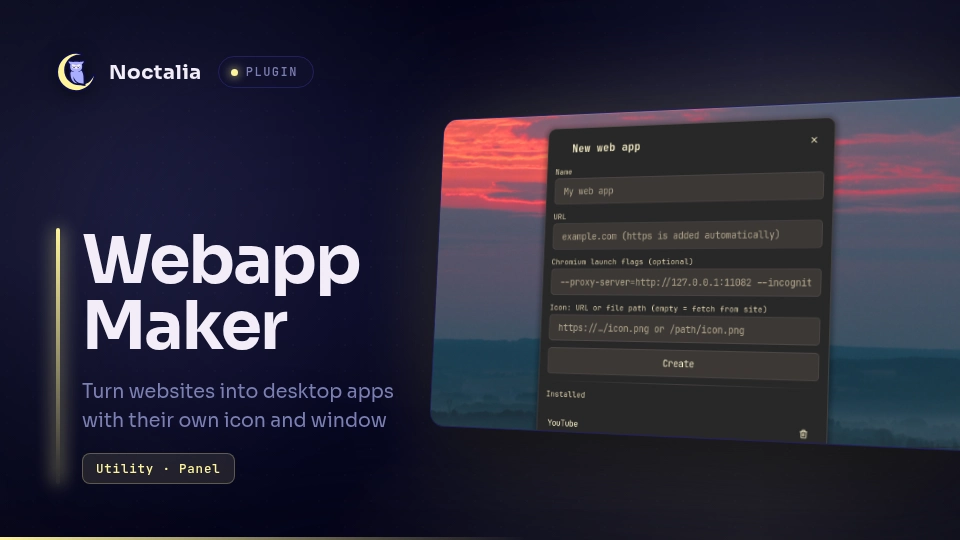
Turn websites into desktop applications: fill in a name and a URL, and get a launcher entry with the site's own icon that opens in a dedicated browser app window — no tabs, no URL bar. The same panel lists every web app it created, with one-click removal.
Plugin
| Field | Value |
|---|---|
| ID | umedbazarov/webapp-maker |
| Entries | Panel: panel |
Requirements
- A chromium-family browser (Chromium, Chrome, Brave, Vivaldi, Edge, …) for
the app windows — that engine family is the only one with an
--appmode. If your default browser is one of them it is used; otherwise the first installed one is picked. Firefox alone is not enough. bash,chmod,cp,curl,file,grep,head,mkdir,rm,sed,setsid,trandxdg-settings, required — used by the bundled scripts to fetch the site icon, write the.desktopentry, resolve the default browser and launch the app window.gtk-update-icon-cache,update-desktop-databaseandnotify-send, optional — icon-cache/database refresh and the fallback "no browser found" notification; each is skipped when absent.
Usage
The plugin has no bar widget. Open the panel from the plugin's row in Settings, or bind it in your compositor:
noctalia msg panel-toggle umedbazarov/webapp-maker:panel
Fill in the form:
- Name and URL are required (
https://is added automatically). - Chromium launch flags (optional) are stored in the launcher and passed
to the browser on every start — e.g.
--proxy-server=http://127.0.0.1:1080to route one site through a proxy, or--incognito. - Icon (optional): empty fetches the site's own icon (apple-touch-icon, then the well-known path, then a favicon service); or give an image URL, a local file path, or the name of an installed theme icon.
Create writes ~/.local/share/applications/<Name>.desktop and installs
the icon into the hicolor theme; the app immediately appears in Noctalia's
launcher and any other application menu. The Installed section at the
bottom lists every web app this mechanism created (and only those — regular
applications are never touched); the trash button removes the launcher and
its icon.
The .desktop entries execute a launch script the plugin copies into its
own data directory, so launchers keep working across plugin updates. If the
plugin is uninstalled, already-created web apps keep working too; removing
them afterwards is a matter of deleting their .desktop files.
Settings
| Setting | Type | Default | Description |
|---|---|---|---|
env_file |
string |
(empty) | A file sourced before the install command — e.g. one exporting HTTPS_PROXY so site icons download through a proxy. Empty disables it. |
Notes
- Commands spawned. Creating: the bundled
scripts/webapp-install.sh(curlfor the site page and icon — the only network access,fileto verify the download is an image,sed/tr/grepfor parsing and freedesktop escaping). Listing:grep -lover~/.local/share/applications/*.desktop. Removing: the bundledscripts/webapp-remove.sh(rmof the entry and icon). Launching (from the created.desktop, not from the panel):scripts/webapp-launch.sh—xdg-settingsto resolve the default browser, thensetsid <browser> --app=<url>plus the stored flags. - Files written.
~/.local/share/applications/<Name>.desktop, the icon under~/.local/share/icons/hicolor/256x256/apps/, and a copy of the launch script in the plugin's data directory. Values written into.desktopfiles are escaped per the freedesktop spec (both string and Exec quoting), and app names may not contain/. - No privileges. Everything runs as the user; nothing touches system configuration.
- Removal only ever deletes launchers whose
Execruns the plugin's launch script, so a name clash with a real application cannot delete it.
Credits
Inspired by Omarchy's omarchy-webapp-install tooling (MIT), rebuilt as a
self-contained Noctalia panel plugin.
License
MIT.
Versions
| Version | Plugin API | Updated |
|---|---|---|
| v1.0.0 latest | 9 | Aug 30, 2026 |
Older versions stay installable on a Noctalia release whose plugin API is below the latest version's.