 Noctalia
About
VS Code
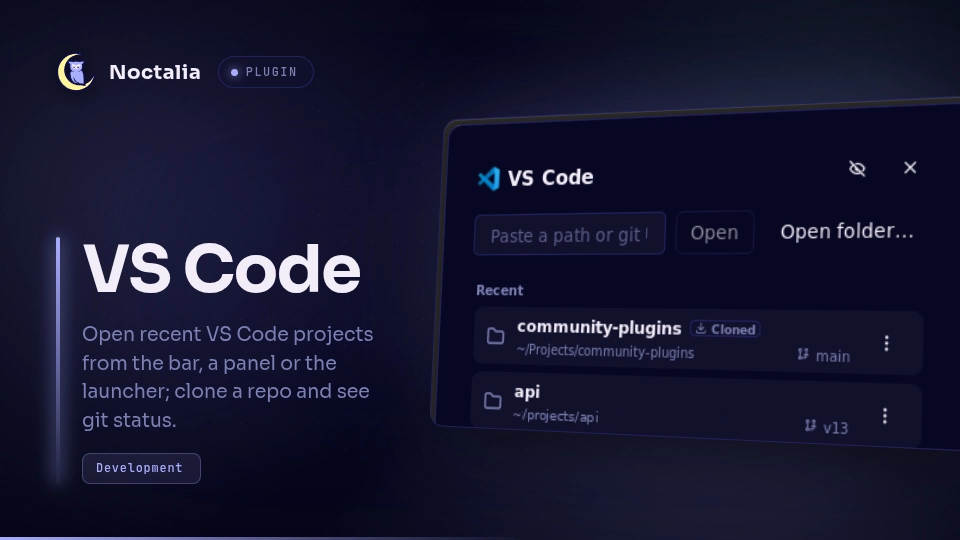
Open your recent VS Code projects from the Noctalia bar, a panel or the launcher. Paste a path to open it, or a git URL to clone it and open the clone. The plugin reads the editor's own recent-projects data, shows git branch and uncommitted changes, and never talks to the network except for a clone you start.
It works with VS Code, VSCodium, VS Code Insiders, Code - OSS, Cursor and the Flatpak build of VS Code. Pick yours with the Editor setting (see Choosing your editor), or leave it on Auto.
Plugin
| Field | Value |
|---|---|
| ID | 3dprogramin/vscode |
| Entries | Bar widget: button; panel: panel; service: service; launcher provider: provider |
| Launcher Prefix | /code |
Requirements
Install at least one supported editor. Every manifest dependency is optional: the plugin skips what is missing and says what it cannot do.
| Dependency | Needed for |
|---|---|
code, codium, code-insiders, code-oss, cursor, flatpak |
The editor itself. A flavor counts as installed when its command exists on PATH and its config folder exists (see the table below). With none installed the panel says so. |
sqlite3 |
Reading the recent list from the editor's state.vscdb (opened read-only). Without it the plugin uses the File > Open Recent menu saved in storage.json. |
git |
The branch and the dirty dot on each row, and Clone. Without it rows have no git info and a git URL shows "Cloning needs git." |
zenity and setsid |
The Open folder... picker. Without them the panel asks you to paste a path instead. |
xdg-open |
Open in file manager. |
kill |
Cancelling a clone, and noticing that a clone's process is gone. |
Running a command in a terminal (Open in terminal) uses Noctalia's own terminal setting; no extra program is needed.
Editors (flavors)
| Flavor | Command | Config folder read | Status |
|---|---|---|---|
| VS Code | code |
~/.config/Code |
tested live |
| VSCodium | codium |
~/.config/VSCodium |
tested live |
| VS Code Insiders | code-insiders |
~/.config/Code - Insiders |
tested live |
| Code - OSS | code-oss |
~/.config/Code - OSS |
not yet tested live |
| Cursor | cursor |
~/.config/Cursor |
tested live |
| VS Code (Flatpak) | flatpak run com.visualstudio.code |
~/.var/app/com.visualstudio.code/config/Code |
tested live |
Only Code - OSS is not tested yet: on Arch its package replaces VS Code. "Not yet tested live" means the paths and command come from the editors' documented layout and the unit tests, but the plugin has not been run against that editor. Reports are welcome.
Choosing your editor
The plugin works with one editor at a time, set by the Editor setting:
- Open the plugin's settings (Noctalia Settings → Plugins → VS Code, or the Change button next to the clone line in the panel).
- Set Editor to the one you use, for example VSCodium, or leave it on Auto.
Everything follows that choice: the header shows that editor's name and icon, the list shows that editor's recent projects (each editor keeps its own history, so switching to an editor you rarely use can show an empty list at first), and every project, path, picked folder and clone opens in it.
With Auto, the plugin looks at the installed editors that have recent-project
history and picks the one used most recently (its storage.json was written last).
An editor you installed and ran once, with no history, does not win. If the editor
you picked is not installed, or installed but never started (it has no config folder
yet), the plugin falls back to Auto and says so under the panel header, for example
"VS Code Insiders isn't set up yet: start it once and open a folder. Using Cursor for now."
An editor counts as installed when its command is on PATH and its config folder
exists (the table above). A custom binary location (an AppImage, a build outside
PATH) is not supported yet; open an issue if you need it.
Usage
Add the button widget to the bar. Click it to open the panel, or run:
noctalia msg panel-toggle 3dprogramin/vscode:panel
The panel has:
- A header with the chosen editor's icon and name, and a gear that opens the plugin settings.
- A box that takes a path (also quoted,
~/...andfile://forms) or a git URL. Its button reads Open for a path and Clone for a git URL. A path that does not exist, or is neither a folder nor a.code-workspacefile, is refused with a message under the box. - Open folder..., a folder picker (needs
zenity). - Pinned projects, then Recent projects. The panel shows the number set in Recent projects and Load more reveals 10 more each time.
- Each project row: click it to open the project. The row shows the project name,
its path (or
host:pathfor a remote project), tags (SSH, Container, WSL, Tunnel, Remote, Workspace, missing), a pin mark and, for local folders in a git repository, the branch with a dot when there are uncommitted changes.
The row's ⋮ button
Each project row ends with a ⋮ button. Click it for the row's actions, inline. Right-click it for a context menu with the same actions (Noctalia only allows context menus on buttons, which is why they hang off this button and not the whole row). The actions are: Pin / Unpin, Open in terminal and Open in file manager (local projects only; for a workspace file they use its folder), Copy path (the path, or the URI for a remote project) and Hide from list.
Pinning and hiding
- Pin keeps a project at the top, in Pinned, whether or not it is recent.
- Hide from list is plugin-only. It hides the project in this plugin and does not touch VS Code: the project stays in VS Code's own File > Open Recent. To get one back, open the settings (the gear in the panel header) and turn on Show hidden projects: hidden projects are listed again, dimmed and tagged Hidden, each with an eye button (and Unhide in its ⋮ menu). Turn the setting off again when you are done. Opening a hidden project (from the path box, for example) also shows it again.
- Projects removed in VS Code can come back. VS Code's File > Open Recent holds only a few entries and drops a project when you remove it there. This plugin also reads the editor's long history (one entry per folder or workspace you have ever opened, which Load more reaches), so a project you removed in VS Code can still be listed here. Hide it in the plugin to get rid of it.
- Folders that no longer exist are hidden by default (Hide missing folders). With that setting off they are listed, dimmed and tagged "missing".
Cloning
Paste a git URL into the path box and press Clone. The panel shows the folder
it will clone into (<Clone folder>/<repository name>), with Change next to it
to open the plugin settings where Clone folder is set, then the progress, with
Cancel. When the clone ends it opens the project in the editor and shows a
notification; the project's row gets a Cloned chip, and the "Cloned" status line
goes away the next time you open the panel (a failed clone's message stays until you
dismiss it). If the folder already exists, Open existing opens it instead of
cloning. git asks no questions (GIT_TERMINAL_PROMPT=0), so a repository that
needs a password fails instead of waiting. ssh clones run without a terminal, so an
unknown host key fails ("Host key verification failed"); connect once from a
terminal first. Only one clone runs at a time. A clone
keeps running if you close the panel or restart the shell; cancelling stops it
(git and its children).
Launcher
Type /code in the launcher to list pinned and recent projects. Add text to filter:
a match on the project name ranks above a match on the path. Enter opens the
project in the editor.
Settings
| Setting | Type | Default | Description |
|---|---|---|---|
editor |
select |
auto |
Which editor opens projects: Auto, VS Code, VS Code Insiders, VSCodium, Code - OSS, Cursor or VS Code (Flatpak). Auto chooses the most recently used installed flavor that has projects. A chosen editor that isn't installed falls back to Auto. |
recent_count |
int |
5 |
How many recent projects the panel shows before Load more (1 to 20). |
show_git |
bool |
true |
Show the branch and a dot for uncommitted changes. Off means no git process is started. |
show_remote |
bool |
true |
Include SSH, container, WSL and tunnel projects. They open through the editor with --folder-uri / --file-uri. |
hide_missing |
bool |
true |
Hide local projects whose folder no longer exists. |
show_hidden |
bool |
false |
List the projects you hid, dimmed and tagged Hidden, so you can unhide them. |
clone_dir |
folder |
~/Projects |
Where clones go. Created when you start a clone. |
show_label |
bool |
false |
Bar widget only: show the editor's name next to the icon. |
IPC
The service owns every read and every process. The panel, bar and launcher send it
requests, and you can too (all is required for a service entry):
ID=3dprogramin/vscode:service

noctalia msg plugin $ID all request '{"action":"refresh"}'
noctalia msg plugin $ID all request '{"action":"open_path","text":"~/Projects/my-app"}'
noctalia msg plugin $ID all request '{"action":"clone","url":"https://github.com/octocat/Hello-World.git"}'
| Action | Arguments | Does |
|---|---|---|
refresh |
Re-reads the recents (the panel and the launcher do this when they open). | |
open |
key: a project's key (its URI, as in the published list) |
Opens it in the editor. |
open_path |
text: what the path box takes |
Opens a folder or .code-workspace file. A bad path sets the message under the box. |
pin, unpin, hide |
key |
Pins, unpins or hides that project. |
unhide |
key |
Shows a hidden project again. |
clear_clone |
none | Clears a finished or cancelled clone's status line (the panel sends it on open). |
copy_path |
key |
Copies the path (the URI for a remote project) to the clipboard. |
open_terminal, open_files |
key |
Local projects only. |
pick_folder |
Starts the folder picker; opens what you pick. | |
git |
keys: list of project keys |
Asks for git info of those local projects (the panel asks for the rows it shows). |
clone |
url |
Starts a clone into clone_dir. |
cancel_clone |
Cancels the running clone. | |
dismiss_error |
Clears the error, the path message and a finished clone's box. |
Every request may also carry a requestId (the panel and launcher add one).
Notes
What the plugin reads
For the chosen flavor's config folder (for example ~/.config/Code/User), read-only:
globalStorage/state.vscdb: the keyhistory.recentlyOpenedPathsList, throughsqlite3 -readonly, only that one value.globalStorage/storage.json: the File > Open Recent menu (lastKnownMenubarData).workspaceStorage/<hash>/workspace.json: one small file per project you have ever opened. This is the long history behind Load more. A folder is rescanned only when its modification time changed./proc/<pid>/cmdlineof a clone's recorded process, to check it is still the clone.- It checks that local project folders still exist and, for local folders on screen,
runs
git(below).
What VS Code actually stores. The plugin reads the database key when it is
present and uses the File > Open Recent menu in storage.json when it is not.
VS Code 1.140 on the author's machine keeps no history.recentlyOpenedPathsList in
state.vscdb, not even in the copy it saves at shutdown (state.vscdb.backup), so
the head of the list comes from the menu there. Why the key is missing is unknown.
The list is the same either way; the menu just holds fewer entries, and the
workspace history fills in the rest. A failed or unreadable read keeps the previous
list.
Order. VS Code's own recent list comes first, in VS Code's order. But VS Code saves that menu lazily while it keeps running, so a project you just opened (or cloned) can be missing from it. Any project whose workspace folder was used more recently than everything in VS Code's list therefore goes on top, newest first.
Files it writes
Nothing outside its own data directory (~/.local/state/noctalia/plugins/data/3dprogramin/vscode/),
and nothing in any editor's folders:
| File | When | Holds |
|---|---|---|
data.json |
Pin, unpin, hide, opening a hidden project, or a finished clone | {"pins": [...], "hidden": [...], "cloned": [...]}, project keys (URIs). cloned marks projects this plugin cloned, shown with a Cloned chip. Written to data.json.tmp and renamed. |
clone/ |
While a clone runs (and its leftovers until the next one) | The job: pid, log (git's progress and errors), status (the exit code; status.tmp for an instant while it is written), job.json (the repository name and target folder). Cleared when the job is dismissed or the next starts. |
picked |
Open folder... | The folder you chose; removed as soon as it is read. |
debug, state.json, test-config-dir |
Only for tests (see Test mode) | Markers and the state file; never created by normal use. |
A clone writes to the Clone folder (clone_dir) like any git clone. The plugin
creates that folder if needed. It never deletes a clone, not even a cancelled one
(a partly cloned folder is left for you to remove).
Processes it starts
Every one, as an argument list unless noted. Only the first group runs without you doing something.
sqlite3 -readonly <state.vscdb> "SELECT value FROM ItemTable WHERE key='history.recentlyOpenedPathsList'", at start, when the panel or launcher opens, and when the file changes (checked every 5 seconds).git --no-optional-locks -c core.fsmonitor=false -C <folder> status --porcelain=v2 --branch(read-only, takes no index lock and runs no repository-configured fsmonitor), for the rows on screen: at most 4 at a time, each result cached for 30 seconds. Skipped when Show git status is off.- The editor:
<command> <path>, or<command> --folder-uri <uri>/--file-uri <uri>for a remote project, started detached, when you open a project. xdg-open <folder>on Open in file manager.sh -c 'cd -- <folder> && exec "${SHELL:-sh}"'in your terminal (Noctalia'srunInTerminal) on Open in terminal. This is the one shell string built from a path; the path is single-quoted.setsid sh -c <script> vscode-pick <dir> <title>on Open folder...; the script runszenity --file-selection --directoryand writes the answer topicked.setsid sh -c <script> vscode-clone <url> <dest> <jobdir>on Clone: a fixed script that records its pid, runsGIT_TERMINAL_PROMPT=0 git clone --progress -- <url> <dest>and records the exit code. The URL and target folder are arguments, never part of the script.kill -TERM -- -<pid>on Cancel (the clone's process group), andkill -0 <pid>to see whether a clone is still alive.
Network
None, except a clone you start: git clone talks to the URL you gave, over whatever
transport it names (https, ssh, git). The plugin makes no other network calls, has no
telemetry and sends nothing anywhere. The editor you open does whatever it does.
Privacy
Recent projects name your work, so the plugin keeps them out of its own output:
noctalia.log gets counts and error kinds only, never git's messages. The plugin
never logs paths or URLs and never sends them anywhere; the panel shows
them only to you (a failed clone shows git's own fatal: line, and the clone box
shows where it clones to). The projects live in memory and in the
panel; the only copy the plugin writes is the pin and hide list.
Test mode and the debug file
Two marker files in the data directory change the behavior. They are for testing and are never created by normal use:
debug: while it exists, every state change is also written tostate.json, holding only projects under/tmp/noctalia-vscode-e2e-plus counts (never your real projects). The plugin deletesstate.jsonwhen the marker is removed.test-config-dir: holds a folder; the plugin then reads recents from there instead of the flavor's config folder and starts the editor with--user-data-dir <folder>(a separate editor instance). Used for screenshots and the live script. Remove it to go back.
Known limits
- A clone's process id file survives a reboot; the plugin only trusts it while a process running its script has that id.
- The plugin does not manage the editor's own recents: it never removes anything from VS Code's history.
- Flatpak VS Code runs in a sandbox that cannot see some host folders even with
full host access: it has its own private
/tmp, and/var/tmp,/usr,/etcand other system folders are hidden. Opening such a path would make it open a blank new file, so the plugin refuses it with a message. Keep projects (and the Clone folder) under your home folder or another normal location such as/opt,/srvor/mnt.
Testing
From the repository root:
lua vscode/tests/run.lua                      # unit suites, no Noctalia needed
python3 vscode/tests/check-translations.py    # every translation key exists, none unused
python3 vscode/tests/privacy-check.py         # none of your real projects appear in the plugin (--no-git skips the history scan)
python3 vscode/tests/e2e-live.py --dry-run    # checks the environment only: no windows, no clone
python3 vscode/tests/e2e-live.py --flavor code --flavor codium   # live: opens and closes real editor windows
privacy-check.py reads your real recent paths from every installed editor into
memory, prints only a count and file names, and never a path.
e2e-live.py needs a running Noctalia, the niri compositor (niri msg) and the
editor commands. It creates /tmp/noctalia-vscode-e2e-<random>/ with made-up folders
alpha and beta gamma and a .code-workspace, points the plugin at a throwaway editor
profile in that folder (the test-config-dir marker), opens each folder and checks
that exactly one new window of that editor appears (no restored session), then checks
a missing path and pin, unpin and hide. It prints pass/fail and counts only (no titles,
no paths). It closes only windows that are new and whose title holds alpha, beta gamma
or the cloned repository's name (by id, through niri msg); other new windows are only
counted in a note. On exit, including SIGTERM and SIGHUP, it removes its markers, temp
folders and pins. Run it at the keyboard, with the screen unlocked.
It does not change your Noctalia config (noctalia msg config-set cannot address a
plugin's settings: the plugin id has a slash in it). So:
- A flavor is tested only when the plugin is already using it (the Editor setting; with Auto, the most recently used one). Any other requested flavor is skipped with a note. Set Editor by hand and rerun to test the other one.
- The clone checks (a clone of
--clone-url, defaulthttps://github.com/octocat/Hello-World.git, the one network use, and a cancelled clone of--big-url, defaulthttps://github.com/git/git.git) run only with--clone-dir /tmp/noctalia-vscode-e2e-<name>, after you set Clone folder to that same path. If the plugin's Clone folder is elsewhere the script refuses to start a clone and fails. The folder is removed at the end. Set Clone folder back afterwards.
Versions
| Version | Plugin API | Updated |
|---|---|---|
| v0.1.0 latest | 43 | Nov 6, 2026 |
Older versions stay installable on a Noctalia release whose plugin API is below the latest version's.