
About
VRChat Status
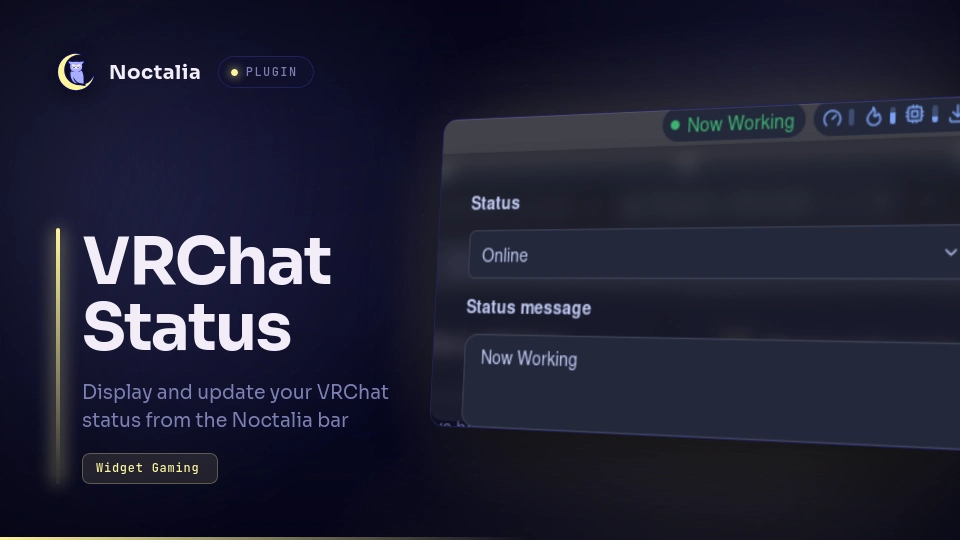
A plugin that displays your VRChat status on the Noctalia bar and lets you change it from a panel.
Plugin
| Field | Value |
|---|---|
| ID | surumeika1987/vrchat-status |
| Entries | Bar widget:status;panel:status-panel |
Requirements
This plugin requires vrchat-status-helper.
Place vrchat-status-helper in a directory included in your PATH, or specify the executable's location in the plugin settings.
Usage
1. Set Up the Background Daemon
Download vrchat-status-helper from the repository, or build it from source.
Place vrchat-status-helper in a directory included in your PATH.
Example:
$HOME/.local/bin/vrchat-status-helper
Next, run the following command to log in to VRChat.
vrchat-status-helper login
After logging in, configure vrchat-status-helper to run in the background.
Configure your desktop environment or compositor, such as Hyprland, to run vrchat-status-helper at startup.
Hyprland example
hl.on("hyprland.start", function()
    hl.exec_cmd("noctalia")
    hl.exec_cmd("/home/<your name>/.local/bin/vrchat-status-helper")
end)
2. Enable the Plugin
Install this plugin from the plugin manager.
To install it manually, run the following commands:
mkdir -p $HOME/.local/share/noctalia/plugins
git clone https://github.com/surumeika1987/noctalia-vrchat-status.git \
    $HOME/.local/share/noctalia/plugins/vrchat-status
Then enable surumeika1987/vrchat-status from the Noctalia settings screen.
Add VRChat Status from the bar settings.
Open the Panel
You can open the panel from the VRChat Status widget on the bar.
To open it directly via IPC, use the following command:
noctalia msg panel-toggle surumeika1987/vrchat-status:status-panel
Settings
The following option is available in the plugin settings:
| Setting | Value | Default | Description |
|---|---|---|---|
| vrchat-status-helper path | File |
vrchat-status-helper |
Path to vrchat-status-helper |
The following options are available in the widget settings:
| Setting | Value | Default | Description |
|---|---|---|---|
| Join Me | Color |
#3B82F6 |
Color of the Join Me status |
| Online | Color |
#3CB371 |
Color of the Online status |
| Ask Me | Color |
#F59E0B |
Color of the Ask Me status |
| Do Not Disturb | Color |
#EF4444 |
Color of the Do Not Disturb status |
| Offline | Color |
#6B7280 |
Color of the Offline status |
| Status message color | Match status Fixed color |
Match status |
Color mode for the status message |
| Fixed message color | Color |
#FFFFFF |
Message color used when Fixed color is selected |
| Min Length | Integer |
100 |
Minimum widget size |
| Max Length | Integer |
300 |
Maximum widget size |
Disclaimer
This plugin uses the VRChat API.
The developer of this plugin is not responsible for any issues arising from use of the VRChat API.
Use vrchat-status-helper and this plugin at your own risk.
For Developers
Noctalia's IPC functionality is used to send data from vrchat-status-helper to this plugin.
You can send status information from an external program to the plugin with the following command:
noctalia msg plugin surumeika1987/vrchat-status:status all push-status '<payload>'
The payload format is as follows:
<Status Number>:<Status Message>
For Status Number, specify a single digit from 0 to 4.
4:Join Me3:Online2:Ask Me1:Do Not Disturb0:Offline
For example, to set the status to Join Me and the status message to Test Message, use the following command:
noctalia msg plugin surumeika1987/vrchat-status:status all push-status '4:Test Message'
Notes
API: This plugin uses the unofficial VRChatAPI.
Authentication:
Cookies are stored in $XDG_CACHE_HOME/noctalia/vrchat-status/cookies.txt, or in~/.cache/noctalia/vrchat-status/cookies.txt, with 0600 permissions.
Process: The external vrchat-status-helper application is required.
Socket: vrchat-status-helper creates a Unix domain socket at $XDG_RUNTIME_DIR/vrchat-status-helper.sock.
Versions
| Version | Plugin API | Updated |
|---|---|---|
| v0.1.0 latest | 24 | Oct 3, 2026 |
Older versions stay installable on a Noctalia release whose plugin API is below the latest version's.