
About
VPN Manager
A NetworkManager VPN front end for Noctalia: connect, disconnect, import and
auto-switch VPN connections of any protocol NetworkManager supports, from a
bar widget and panel, the same way nm-applet/nmtui do.
Plugin
| Field | Value |
|---|---|
| ID | andrewdems/vpn-manager |
| Entries | Service: service; bar widget: bar; panel: panel; shortcut: toggle; launcher: provider |
| Launcher Prefix | /vpn |
Requirements
NetworkManager, providing nmcli on PATH. Any VPN protocol you want to use
also needs its NetworkManager VPN plugin installed - see How it works below.
Edit connection opens nm-connection-editor when it is installed, and falls
back to nmtui-edit in a terminal otherwise. Neither is required: without them
the button just reports that no editor was found.
The file picker used by Add VPN is kdialog, falling back to zenity.
Neither is required either - without them you can still type a path or paste the
configuration text.
How it works
This plugin does not implement any VPN protocol itself. It drives nmcli,
so it supports whatever protocols your installed NetworkManager VPN plugins
support: OpenVPN, WireGuard (built into NetworkManager), IPsec/IKEv2
(strongSwan), L2TP/IPsec, PPTP, SSTP, Cisco AnyConnect (OpenConnect) and
Cisco legacy VPN (vpnc). Any VPN connection already configured with
nmtui, nm-connection-editor or nmcli shows up in the panel
automatically.
Install the matching package to add a protocol, e.g. on Arch:
sudo pacman -S networkmanager-openvpn      # OpenVPN
sudo pacman -S networkmanager-strongswan   # IPsec / IKEv2
sudo pacman -S networkmanager-l2tp         # L2TP/IPsec
sudo pacman -S networkmanager-pptp         # PPTP
sudo pacman -S networkmanager-openconnect  # Cisco AnyConnect
sudo pacman -S networkmanager-vpnc         # Cisco legacy VPN
sudo pacman -S networkmanager-sstp         # SSTP
WireGuard needs nothing extra; NetworkManager 1.16+ supports it natively.
Usage
Add the VPN Manager widget under Settings → Bar (or add
andrewdems/vpn-manager:bar to a bar's widget list in config.toml), and/or
add the toggle shortcut to the control center. Click the bar widget to
open the panel.
In the panel:
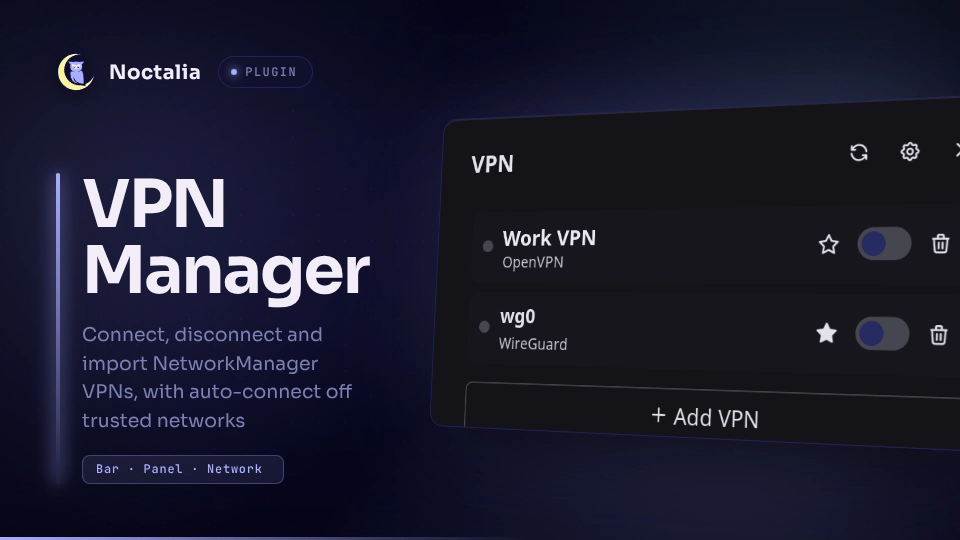
Connections - toggle to connect/disconnect, star to mark as the auto-connect default, the info button to expand the connection's details, and trash to delete (which asks first).
Connection details - expanding an active connection shows its state, device, IPv4/IPv6 address and gateway, read live from
nmcli. An inactive connection has none of that yet, so it says so. Edit connection opens the connection in a full editor.Add VPN - import a
.ovpn/WireGuard/vpnc/OpenConnect config. The folder button opens a graphical file picker (kdialog, orzenity) and imports whatever you choose; you can also type a path or paste the config text. PPTP, L2TP/IPsec and IKEv2 generally need fields typed in rather than a file - create those withnmtuiand they'll appear in the list automatically.Opening the picker closes the panel. That is deliberate: the picker is a separate window, and a panel left open underneath it holds a layer-shell grab that would leave the picker visible but unclickable. The file you choose is imported on its own, and appears in the connection list next time you open the panel. If the import fails, the panel reopens on this form with the reason and the file that failed, so you can pick a protocol explicitly and retry.
Trusted networks - list of Wi-Fi SSIDs / Ethernet connection names where the VPN should stay off. One-click
Trust '<name>'buttons appear for whatever network you're currently on.
Open or close the panel with:
noctalia msg panel-toggle andrewdems/vpn-manager:panel
Typing /vpn in the launcher offers "Open VPN Manager" plus a
connect/disconnect entry for every configured connection.
Auto-connect on untrusted networks
Turn on Auto-connect on untrusted networks in the plugin's settings
(gear icon in the panel, or Settings → Plugins → VPN Manager) and star a
connection to make it the default. Whenever the active Wi-Fi/Ethernet
network isn't on your trusted list for stable_checks consecutive polls,
that VPN is connected automatically; when you're back on a trusted network,
it's disconnected automatically (only if this plugin was the one that
started it - a VPN you connected by hand is left alone).
Wired Ethernet is trusted by default (Treat any wired connection as trusted); turn that off if you plug into untrusted wired networks too.
Settings
| Setting | Type | Default | Description |
|---|---|---|---|
auto_connect_enabled |
bool |
false |
Auto-connect the default VPN on untrusted networks. |
auto_disconnect_on_trusted |
bool |
true |
Auto-disconnect a plugin-started VPN on trusted networks. |
trust_all_ethernet |
bool |
true |
Treat any wired connection as trusted. |
notify_on_autoswitch |
bool |
true |
Notify on automatic connect/disconnect. |
poll_interval_seconds |
int |
5 |
How often to check VPN/network status. |
stable_checks |
int |
3 |
Consecutive checks required before switching (debounce). |
IPC
noctalia msg panel-toggle andrewdems/vpn-manager:panel                    # open or close the panel
noctalia msg plugin andrewdems/vpn-manager:service all refresh            # re-poll NetworkManager now
noctalia msg plugin andrewdems/vpn-manager:service all status             # notify with the active VPNs
noctalia msg plugin andrewdems/vpn-manager:service all connect <uuid>     # connect one VPN by UUID
noctalia msg plugin andrewdems/vpn-manager:service all disconnect <uuid>  # disconnect one VPN by UUID
noctalia msg plugin andrewdems/vpn-manager:service all import <path>      # import a config file
noctalia msg plugin andrewdems/vpn-manager:service all pick               # open a file picker and import what is chosen
noctalia msg plugin andrewdems/vpn-manager:service all dismiss-error      # clear a stuck import-failure banner
noctalia msg plugin andrewdems/vpn-manager:service all list               # log the known connections
UUIDs are the ones nmcli connection show prints.
Notes
Secrets (passwords, PSKs) are never touched by this plugin - it only passes UUIDs to
nmcli. A connection whose password is marked agent-owned (password-flags = 1) needs a NetworkManager secret agent to supply it; without one, NetworkManager reportsNo valid secretsand activation fails before the VPN process starts. Desktop environments ship an agent (nm-applet, GNOME Shell, plasma-nm); a bare Wayland session often has none.When a connect fails that way, this plugin reruns it as
nmcli --ask connection up uuid <uuid>in a terminal so you can type the password. Auto-connect never does this - it will not seize a terminal unprompted - and reports the problem instead.To stop being asked at all, store the password in the connection:
nmcli connection modify <name> vpn.secrets password=<password> vpn.data password-flags=0NetworkManager then keeps it in the connection file (root-readable only) and the VPN connects headlessly from then on.
Pasted/imported config text is written to a temporary file under the plugin's data directory only for the duration of the
nmcli connection importcall, then deleted immediately (success or failure) so secrets don't linger on disk outside NetworkManager's own connection storage.Newly imported connections have NetworkManager's own
autoconnectturned off, since this plugin (when enabled) is what decides when the VPN comes up, based on trusted networks rather than "device available".Trusted networks, the default VPN, and which VPN this plugin auto-started are stored under
noctalia.pluginDataDir(), not inplugin.tomlsettings, since they're runtime lists edited from the panel.
AI assistance
This plugin, and this README, were written with AI assistance. I run it on my own desktop and tested what shipped.
Versions
| Version | Plugin API | Updated |
|---|---|---|
| v1.0.0 latest | 24 | Sep 7, 2026 |
Older versions stay installable on a Noctalia release whose plugin API is below the latest version's.