
About
Super Productivity
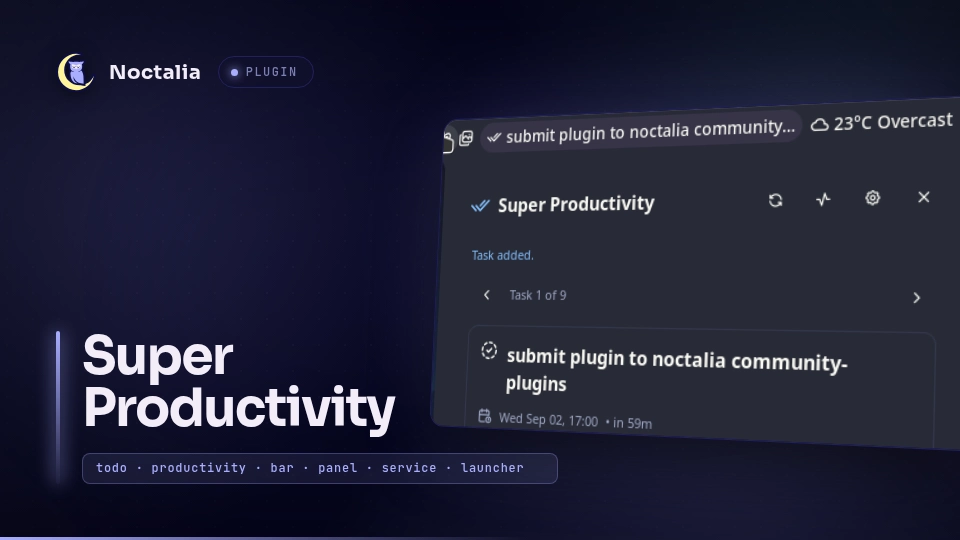
This plugin brings Super Productivity tasks to the Noctalia bar. It shows due tasks, captures tasks with Short Syntax, tracks time, reschedules tasks, and restores recent completions. The optional companion provides automatic refreshes and opens the displayed task in the desktop app.
Plugin
| Field | Value |
|---|---|
| ID | redxtech/super-productivity |
| Entries | Bar widget: next-task, panel: details, service: service, launcher provider: capture |
| Launcher Prefix | /sp |
Requirements
- Super Productivity desktop app version 18.21.2 or newer (earlier versions may work, but are untested).
- The local REST API must be enabled. Noctalia uses it for task data and actions.
python33.9 or newer is required to build or verify the optional companion package.xdg-openis optional and is used only by the panel's Open package folder action.flatpakis optional and is used only to launch a Flatpak installation when that launch method is selected or auto-detected.- The companion needs read and write access to Super Productivity's application data directory.
The companion requests Super Productivity's nodeExecution and selectTask permissions. nodeExecution gives the companion filesystem access under your user account. selectTask lets it open an exact task. Review companion/plugin.js before granting these permissions. The companion publishes change notifications and handles exact-task opening. Task data and actions use the local REST API.
How to connect Super Productivity
Enable the local REST API
- Install
redxtech/super-productivityfrom the Noctalia plugin source. - Start Super Productivity 18.21.2 or newer.
- Open Settings → Misc in Super Productivity.
- Turn on Enable local REST API. Super Productivity generates a device-local access token.
- Add the
next-taskwidget to a Noctalia bar and open its details panel. - Select Refresh.
- Open Diagnostics and confirm that Local REST API is Ready.
Noctalia reads the access token from Super Productivity's local-rest-api-token file. It checks these Linux locations:
- Native packages:
$XDG_CONFIG_HOME/superProductivity/local-rest-api-token, or~/.config/superProductivity/local-rest-api-tokenwhenXDG_CONFIG_HOMEis unset. - Flatpak:
~/.var/app/com.super_productivity.SuperProductivity/config/superProductivity/local-rest-api-token.
If Super Productivity uses a custom user-data directory, set REST token file override to its local-rest-api-token file. Configure the file path, not the token value. Treat this file as a credential and do not share it.
Install the companion
The local REST API provides task data and actions. The companion adds automatic refreshes after app changes and opens the displayed task.
- Open the Noctalia details panel.
- Select Build companion package.
- Select Open package folder after the build completes.
- Open Settings → Plugins → Choose Plugin File in Super Productivity.
- Select
noctalia-super-productivity.zipfrom the generated package directory. - Enable Noctalia Super Productivity Companion.
- Approve its desktop file-access prompt.
- Return to the Noctalia details panel and select Refresh.
- Open Diagnostics and confirm that Companion bridge is Ready.
The plugin generates the ZIP only when requested. The readable source remains in companion/. The package and its metadata are stored under:
$XDG_DATA_HOME/noctalia-super-productivity/
When XDG_DATA_HOME is unset, the directory is ~/.local/share/noctalia-super-productivity/. After a companion update, rebuild the package and reinstall the ZIP.
The included packager validates the bundled sources and builds the deterministic archive without writing it:
python3 scripts/package-companion.py --check
The panel is also available directly:
noctalia msg panel-toggle redxtech/super-productivity:details
Usage
Widget
- Left click: Opens the task details panel.
- Right click: Completes the displayed task. The completion sound plays after confirmation when
sound_on_completeis enabled. - Middle click: Launches or focuses Super Productivity and opens the displayed task. This action requires the companion.
- Scroll: Moves through due tasks. The tracked task appears first when
prefer_tracked_taskis enabled.
The details panel shows timer controls when show_timer_controls is enabled. It also provides rescheduling, quick capture, undo, and separate REST and companion diagnostics.
Quick capture
In the panel, enter task text and press Enter or select Add. In the Noctalia launcher, type /sp followed by the task text. Activate the Add result to create the task. Without task text, activate Open Super Productivity to launch or focus the desktop app.
Noctalia sends the input to Super Productivity's local REST API. Super Productivity applies the Short Syntax forms enabled in its settings. Disabled or unsupported forms remain in the task title.
Examples:
/sp Prepare release +Work #urgent @tomorrow 10am 45m
/sp Water plants @friday 15m
/sp Investigate issue 30m/2h
Super Productivity can request confirmation before Short Syntax creates a new tag. The prompt appears in the desktop app.
Settings
| Setting | Type | Default | Description |
|---|---|---|---|
auto_start |
bool |
false |
Starts the desktop app when the service needs it and Super Productivity is not running. |
launch_method |
select |
auto |
Controls how Noctalia starts or focuses the desktop app. |
native_command |
string |
superproductivity |
Native executable name or absolute path. Arguments are not accepted. |
bridge_dir |
string |
empty | Companion bridge directory. An empty value enables automatic discovery. |
rest_token_file |
file |
empty | Local REST API token file. An empty value enables automatic discovery. |
prefer_tracked_task |
bool |
true |
Places the current timer task before due tasks. |
show_timer_controls |
bool |
true |
Shows timer controls in the details panel. |
sound_on_complete |
bool |
true |
Plays Super Productivity's default sounds/ding-small-bell.mp3 after confirmed completion. |
notify_due |
bool |
false |
Notifies when a displayed task crosses its due time while the service is running. |
overdue_text_color |
color |
error |
Sets overdue task text color in the bar widget and details panel. |
max_upcoming |
int |
30 |
Sets the scrollable task list size. The allowed range is 5 to 50 tasks. |
glyph |
glyph |
checks |
Selects the widget icon. |
show_due_text |
bool |
true |
Shows relative due text in the widget. |
max_title_chars |
int |
36 |
Sets the displayed title length. The allowed range is 12 to 80 characters. |
Notes
Data flow and security
Noctalia loads tasks, projects, tags, and timer state from Super Productivity's authenticated local REST API at http://127.0.0.1:3876. Noctalia includes the access token only in requests to this loopback address.
The companion writes connection metadata (connection.json), change notifications (change.json), responses, and errors (bridge-error.json) to the bridge directory; Noctalia reads these files. Noctalia writes exact-task commands, which the companion reads and claims for processing. Both sides remove completed command/response files; the companion also cleans up expired commands, responses, failed commands, and temporary files. On startup it removes the legacy snapshot.json and bridge-error.json files, and clears bridge errors after recovery. Noctalia combines rapid notifications into one REST refresh. Companion files do not contain task data. The bridge also carries requests to focus Super Productivity and select an exact task.
The companion's nodeExecution permission gives it filesystem access under your user account. The spawned python3 packager reads companion sources and writes the generated ZIP and companion-package.json metadata under $XDG_DATA_HOME/noctalia-super-productivity/.
Noctalia can spawn flatpak run com.super_productivity.SuperProductivity, the configured native Super Productivity command, and xdg-open for the package folder. These commands are used only for their corresponding launch or packaging actions.
The completion sound is Super Productivity's default ding-small-bell.mp3, sourced from the upstream repository. Its source and license are recorded in THIRD_PARTY_LICENSES.md.
Behavior and limitations
- The widget shows active, incomplete tasks with a scheduled date or time. Timed tasks use their exact timestamp. Date-only tasks are due at the end of their local calendar day. Earlier tasks appear first. Parent tasks and subtasks can appear.
- When
prefer_tracked_taskis enabled, the currently tracked task appears before scheduled tasks. - Noctalia refreshes REST data at startup, after successful task actions, after manual refreshes, and after companion notifications. It does not poll task data at short intervals.
- Noctalia processes one foreground task action at a time. If another action arrives, it rejects the new request and keeps the current action active.
- A timer start or stop remains in progress until refreshed REST state confirms the result. A failed confirmation refresh reports an unknown outcome. Contradictory timer state reports an error.
- Without the companion, REST task loading and actions still work. Automatic refreshes and exact-task opening do not. Use Refresh after changes made directly in Super Productivity.
- REST rescheduling does not clear an existing reminder. The old reminder can still fire after
+1 hour,Tomorrow, orNext weekchanges the task date. - Noctalia does not replay timed-out changes. A timed-out action might still succeed, so check Super Productivity before trying again.
- Undo is available for 30 seconds and only during the current Noctalia service runtime. Due notifications are not replayed for deadlines missed while Noctalia was stopped.
Troubleshooting
- Open the panel's Diagnostics section.
- Check Status and Local REST API first. REST connection or authentication failures prevent task loading and task actions.
- In Super Productivity, confirm Settings → Misc → Enable local REST API is enabled.
- If you regenerated the access token, select Refresh. The first request can fail while Noctalia discards the cached token. Select Refresh again to load the new token file.
- If token discovery fails, confirm the token file path above. A custom user-data directory requires REST token file override.
- Check Companion bridge and Hook updates separately. A bridge failure affects exact-task opening. A hook failure requires manual refreshes after app changes. Neither failure disables REST task actions.
- Re-enable the companion if Super Productivity's file-access prompt was denied.
- Select Rebuild package and reinstall the generated ZIP after a companion update.
Versions
| Version | Plugin API | Updated |
|---|---|---|
| v2.0.0 latest | 24 | Sep 12, 2026 |
Older versions stay installable on a Noctalia release whose plugin API is below the latest version's.