 Noctalia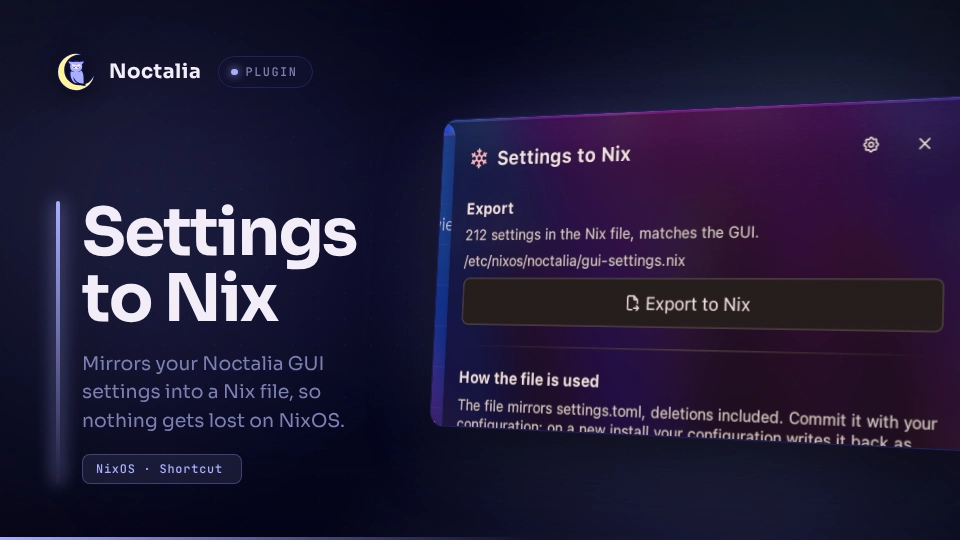
About
Settings to Nix
Configure Noctalia entirely in its settings window and keep a backup of every setting as
a Nix file. On a new install (or after the state is lost) you run that file once with
nix-build, and Noctalia comes back with all your settings and plugins, including this
one.
[!IMPORTANT] The Nix file is your backup, so back it up. The plugin only writes the file. Put it somewhere that survives a reinstall, for example your NixOS/dotfiles git repository, and commit it regularly. Restoring brings back the state of the file you saved.
The plugin never builds, switches or changes your system configuration, and nothing reads the file until you run it.
Plugin
| Field | Value |
|---|---|
| ID | dmopp/settings-to-nix |
| Entries | Shortcut: export; panel: panel; service: service |
Requirements
nixwithnixpkgson the Nix path, to run the restore (nix-build).nix-instantiateonPATHis used to check the file before an export replaces the old one; without it the check is skipped.coreutilsonPATH(mktemp,rmdir), for the private temporary directory an export writes into. Always present on NixOS.
How it works
Everything you change in Noctalia's settings window is stored in
~/.local/state/noctalia/settings.toml ($NOCTALIA_STATE_HOME/$XDG_STATE_HOME are
honored). That includes the list of enabled plugins and their settings.
GUI ──▶ settings.toml ──export──▶ gui-settings.nix   (backed up, e.g. in git)
              ▲                                │
              └──── restore, run by hand ──────┘
- Export writes
settings.tomlinto the Nix file as an exact mirror, live: every change in the GUI is in the file within a few seconds. A setting you delete in the GUI also disappears from the file. - Restore is a command you run yourself. It builds
settings.tomlfrom the Nix file and puts it in place. Nothing happens automatically.
The wallpaper paths Noctalia rewrites on every wallpaper change (wallpaper.last.path,
wallpaper.default.path, wallpaper.monitors.*.path) are left out, so changing the
wallpaper does not change the file.
Usage
Setup
Install and enable the plugin.
Choose where the backup goes. Open Settings → Plugins, click the gear on the Settings to Nix row and set Target Nix file to a place you back up. The file is written right away and then kept up to date on every change.
The plugin runs as your user, so it can only write where your user may write. It writes into a temporary directory next to the target and renames the file, so it needs write access to the directory, not just the file.
In
/etc/nixos(owned by root): create one subdirectory that belongs to your user, once, and leave the rest of/etc/nixosalone:sudo install -d -o "$USER" /etc/nixos/noctaliaThen set Target Nix file to
/etc/nixos/noctalia/gui-settings.nix.In your home directory, for example a config repository in
~/nixos-config, nothing else is needed.Back up the file together with the rest of your configuration, for example with git:
sudo git -C /etc/nixos add noctalia/gui-settings.nix
sudo git -C /etc/nixos commit -m "noctalia settings"
The file on disk is always current; a restore brings back the state you backed up.
[!WARNING] Settings in a config file are not part of the backup. Only
settings.toml(the GUI layer) is exported. If you also have settings in~/.config/noctalia/*.toml(written by hand or generated by your Nix configuration), keep backing up those files as well, or move their content into the GUI layer first:cp ~/.local/state/noctalia/settings.toml ~/noctalia-settings.backup.toml noctalia config export merged > /tmp/noctalia-merged.toml { echo 'config_version = 15'; cat /tmp/noctalia-merged.toml; } > ~/.local/state/noctalia/settings.tomlUse the
config_versionfrom your backup. Noctalia reloads the file on its own.
Restoring
On a new install, after you got your backup back (for example by cloning your config
repository to /etc/nixos):
Make the directory writable for your user again. A fresh clone belongs to root. This is the command from the setup; it also fixes an existing directory:
sudo install -d -o "$USER" /etc/nixos/noctaliaRun the restore as your normal user, in the directory of the file:
cd /etc/nixos/noctalia
$(nix-build --no-out-link ./gui-settings.nix)/bin/noctalia-restore-settings
Restart Noctalia (log out and in again, or restart it however you start it).
What the command does:
- It writes
settings.tomlfrom the Nix file to Noctalia's state directory. An existingsettings.tomlis replaced; the old one is kept assettings.toml.bak-<time>next to it. - It marks Noctalia's first-run setup as done (
.setup-complete), so the setup wizard does not open and write its own choices over yours. - It does not touch anything else.
On the restart Noctalia installs every plugin listed in the restored settings again
from the official and community sources, this one included, with their settings.
That needs network access; if it fails, the next start tries again.
Things to know:
nix-buildneedsnixpkgson the Nix path. NixOS sets it up (flake-based systems built withnixpkgs.lib.nixosSystemtoo). If you getfile 'nixpkgs' was not found, add-I nixpkgs=flake:nixpkgsto thenix-buildcall.- You can run the same command on a running system to roll back to the state of the file.
- Secrets are not part of the settings. Calendar passwords and other credentials live in your keyring; enter them again after the restore.
- Plugins from local
pathsources are only found if those directories exist again. - The wallpaper is not restored (see How it works); pick it once.
Restoring automatically (optional)
The file also exposes the settings themselves as .settings, so your configuration can
write settings.toml on its own whenever it is missing (new install, lost state), with
no command to run. An existing settings.toml is never touched. On NixOS (replace
alice with your user name):
{ pkgs, ... }:
let
  noctaliaSettings = (import ./noctalia/gui-settings.nix { inherit pkgs; }).settings;
  noctaliaSeed = (pkgs.formats.toml { }).generate "noctalia-settings.toml" noctaliaSettings;
in
{
  system.userActivationScripts.noctalia-settings-seed = ''
    if [ "$USER" = alice ]; then
      dir="''${XDG_STATE_HOME:-$HOME/.local/state}/noctalia"
      if [ ! -e "$dir/settings.toml" ]; then
        mkdir -p "$dir"
        install -m 644 ${noctaliaSeed} "$dir/settings.toml"
        touch "$dir/.setup-complete"
      fi
    fi
  '';
}
It runs at login and on every switch. With Home Manager, put the same shell lines into
home.activation.<name> = lib.hm.dag.entryAfter [ "writeBoundary" ] '' … '';. The file
has to be tracked by git when your configuration is a flake.
Where the buttons are
You do not need a button: the file is always current. A button only shows the status and lets you export by hand. Noctalia does not add plugin shortcuts to the control center on its own, so after enabling the plugin you will not see one anywhere. If you want one, there are two ways.
[!NOTE] The control center's Home tab holds at most six shortcuts, and the default set already uses all six (
wifi,bluetooth,caffeine,nightlight,notification,power_profile). To add the tile you have to remove another shortcut first; until then the + button stays disabled and nothing tells you why. If you do not want to give one up, use the panel (B).
A. Control-center tile
- Open Settings → Control Center and expand Home. The Home shortcuts list
holds at most six shortcuts. When it shows
6/6, the + button is disabled: remove one shortcut with its ✕ first. - In the dropdown, choose Settings to Nix. The dropdown shows the plugin's name; the tile itself is labeled Export to Nix. Then click +.
- The tile (a snowflake) now appears at the bottom of the control center's Home tab:
- Click opens the panel.
- Right-click exports directly, without opening the panel.
- When writing the file fails (for example no write access to its directory), the tile switches to a warning icon, is highlighted and reads Nix export failed. Open the panel to see the error. Noctalia's tiles cannot be colored, so this is as close to "red" as it gets.
The same in TOML:
[[control_center.shortcuts]]
type = "dmopp/settings-to-nix:export"
B. Panel only, e.g. on a compositor key binding
noctalia msg panel-toggle dmopp/settings-to-nix:panel
The panel shows how many settings the file holds, whether the GUI changed since the last export, the target path and an Export to Nix button.
Everyday use
- Change settings in the GUI as usual. They take effect immediately, as always.
- The Nix file follows on its own within a few seconds.
- Back up the Nix file (commit it) regularly. A restore brings back the state of the last file you saved.
The generated file looks like this (shortened):
# Noctalia settings, mirrored from the GUI by the dmopp/settings-to-nix plugin
# ...
#   $(nix-build --no-out-link ./gui-settings.nix)/bin/noctalia-restore-settings
# ...
{ pkgs ? import <nixpkgs> { } }:
let
  settings = {
    bar.Top.capsule_opacity = 0.35;
    config_version = 15;
    plugins.enabled = [ "dmopp/settings-to-nix" ];
    theme = {
      mode = "dark";
      source = "wallpaper";
    };
  };
  settingsToml = (pkgs.formats.toml { }).generate "noctalia-settings.toml" settings;
in
pkgs.writeShellScriptBin "noctalia-restore-settings" ''
  # writes settings.toml, see "Restoring"
''
Settings
| Setting | Type | Default | Description |
|---|---|---|---|
target_path |
file |
~/.config/noctalia/gui-settings.nix |
The Nix file the settings are mirrored to, kept up to date on every GUI change. Put it somewhere you back up. |
IPC
# Export now (same as right-clicking the tile)
noctalia msg plugin dmopp/settings-to-nix:service all export
Use it from scripts, for example to export right before you commit your configuration.
Notes
- Nothing of yours is overwritten. The plugin only replaces a target file that it wrote itself (recognized by its first line). If anything else is at the target path, including a file it cannot read, a directory or a dangling symlink, the export stops with an error. The check runs again right before the file is replaced.
- Files written: only the target file. An export writes into a private directory
that
mktemp -dcreates next to the target (.settings-to-nix.XXXXXX, mode 0700), then renames the file over the target and removes the directory. The plugin never writessettings.toml; only the restore command you run yourself does. - Processes:
mktemp -dandrmdirfor that directory, andnix-instantiate --parseon the new file before it replaces the old one (skipped whennix-instantiateis not onPATH). There is no network access. - A failed write (for example a directory your user may not write to) is shown once and retried when a setting or the target path changes. After fixing the cause, right-click the tile (or use the panel or IPC) to export right away.
- TOML values Nix cannot express (
inf,nan) are left out; dates are exported as strings. - The plugin reads
settings.tomlitself (with its own TOML reader), so it does not needremarshal,yjor similar.
Versions
| Version | Plugin API | Updated |
|---|---|---|
| v1.0.0 latest | 24 | Oct 27, 2026 |
Older versions stay installable on a Noctalia release whose plugin API is below the latest version's.