
About
Printers
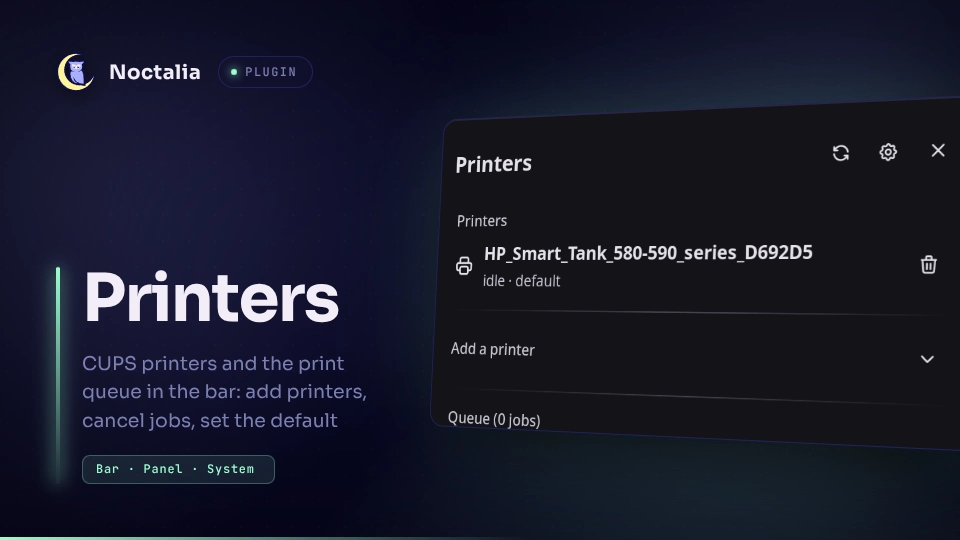
Your CUPS printers and print queue in the Noctalia bar. The widget stays out of the way until a job is queued or a printer stops, and the panel lets you set the default printer, cancel jobs, print the clipboard and open the CUPS web interface.
Everything is discovered from lpstat at runtime, so there is nothing to
configure: whatever destinations CUPS knows about are the ones you see.
Plugin
| Field | Value |
|---|---|
| ID | andrewdems/printers |
| Entries | Bar widget: printer; panel: panel; service: service; shortcut: toggle |
Requirements
A running CUPS installation providing lpstat, lp, cancel, lpoptions,
lpinfo and lpadmin on PATH (the cups package on most distributions),
plus xdg-open for the Open CUPS button.
Adding and removing printers needs CUPS administrative rights. On a normal
desktop install your user is already in the CUPS SystemGroup (sys or wheel
depending on the distribution) and lpadmin works with no password; if it does
not, the panel reports what CUPS said instead of prompting.
The Printer settings button runs whatever settings_command names
(system-config-printer by default). Install it, point the setting at another
tool, or ignore the button.
Usage
Add the Printers widget under Settings → Bar (or put andrewdems/printers:printer
in a bar's widget list in config.toml). By default it appears only when there
is a job in the queue or a printer has stopped; turn on Always show the bar
widget to keep it pinned. The glyph turns red and switches to a struck-through
printer when a destination reports itself disabled, and the job count sits next
to it.
Click the widget to open the panel, right-click it to re-poll immediately. The
toggle shortcut can be added to the Control Center from Settings → Control
Center; it opens the same panel.
In the panel:
- Printers: every CUPS destination with its state. The default is shown in
bold; Set default on any other row runs
lpoptions -d, and the trash icon removes the queue after a confirmation step. A driverless printer that CUPS has discovered but not yet added shows as available, not yet added, and can be set as the default like any other. - Queue: the active jobs, newest CUPS order. Each row carries the job's CUPS status, so a job stuck in the filter chain says why on the row instead of failing silently; a failed job turns the row red and the bar widget with it. The × on a row cancels that job; Cancel all asks for confirmation, then cancels the lot.
- Add a printer: expand it to list what CUPS can see over DNS-SD, IPP, USB,
LPD and raw sockets. Each printer is listed once, preferring its driverless
IPP service over the raw port, and shows the queue name it would get. Add
creates it with
lpadmin -m everywhere, so the queue is driverless IPP Everywhere with no vendor driver and no PPD to maintain. A device that is already a queue says so and cannot be added twice; the match is on the device URI, not the name, so a queue set up by another tool is still recognised. - Open CUPS opens the CUPS web interface, Printer settings launches your printer configuration tool, and Print clipboard sends the current clipboard text to the default printer.
Open or close the panel with:
noctalia msg panel-toggle andrewdems/printers:panel
Settings
| Setting | Type | Default | Description |
|---|---|---|---|
poll_interval_seconds |
int |
10 |
How often lpstat is queried (5–300 seconds). |
show_when_idle |
bool |
false |
Keep the bar widget visible with an empty queue and no fault. |
notify_on_fault |
bool |
true |
Notify the first time a printer reports itself disabled or stopped. |
cups_url |
string |
http://localhost:631/jobs/ |
URL opened by Open CUPS. |
settings_command |
string |
system-config-printer |
Command run by Printer settings. Split on spaces, run directly, never through a shell. |
IPC
noctalia msg plugin andrewdems/printers:service all refresh          # re-poll now
noctalia msg plugin andrewdems/printers:service all status           # notify with the default printer and job count
noctalia msg plugin andrewdems/printers:service all cancel <job-id>  # cancel one job, e.g. Office_Laser-7
noctalia msg plugin andrewdems/printers:service all cancel-all       # cancel every job
noctalia msg plugin andrewdems/printers:service all print-clipboard  # print the clipboard on the default printer
Notes
- Processes. The service spawns
lpstat -d,lpstat -p,lpstat -eandlpstat -l -oon every poll,lpstat -vandlpinfoon every poll while "Add a printer" is expanded (the discoverable-device scan is otherwise skipped, since nothing reads it with the section collapsed), andcancel,lpoptions -d,lp -d,xdg-openor the configured settings command when you use an action. Every one is spawned as an argv list, never through a shell, so a printer or job name can never be interpreted as a command. - Files. Print clipboard writes the clipboard text to a timestamped
clipboard-<ms>.txtin the plugin's data directory, passes that path tolp, and deletes it as soon aslpreturns. The timestamp keeps two overlapping print requests from racing on the same file. Nothing else is written, and the text never appears on a command line. - Network. The plugin makes no network requests of its own.
cups_urlis handed toxdg-open, which opens it in your browser. - Privacy. No printer name, host or queue is stored in the plugin. Names come
from
lpstatat runtime and live only in the shell's memory. - Driverless printers. Destinations come from
lpstat -p(configured queues) merged withlpstat -e(everything CUPS can print to). An IPP Everywhere printer found over DNS-SD appears in the second list only until CUPS materializes a permanent queue for it, so without the merge it would be missing from the panel on exactly the setups that need no configuration. Once the queue exists, both lists name the same printer with different punctuation (HP_Smart_Tank_580_590_seriesannounced,HP_Smart_Tank_580-590_seriesqueued), so names are compared with punctuation and case folded and the printer is listed once. - Printer changes. Add runs
lpadmin -p <name> -E -v <uri> -m everywhereand the trash icon runslpadmin -x <name>. Both change system-wide CUPS configuration, not just this user's, which is why removal asks first. Only driverless printers can be added here; one that needs a vendor driver has to be set up in a full printer configuration tool. - Faults. A printer is treated as faulted when
lpstat -preports it asdisabledorstopped, and a job is treated as failed when its CUPS alert mentions an error. CUPS keeps that state until you re-enable the printer, so the widget stays red until the underlying problem is cleared.
AI assistance
This plugin, and this README, were written with AI assistance. I run it on my own desktop and tested what shipped.
Versions
| Version | Plugin API | Updated |
|---|---|---|
| v1.0.0 latest | 24 | Sep 5, 2026 |
Older versions stay installable on a Noctalia release whose plugin API is below the latest version's.