
About
Pixel Shift
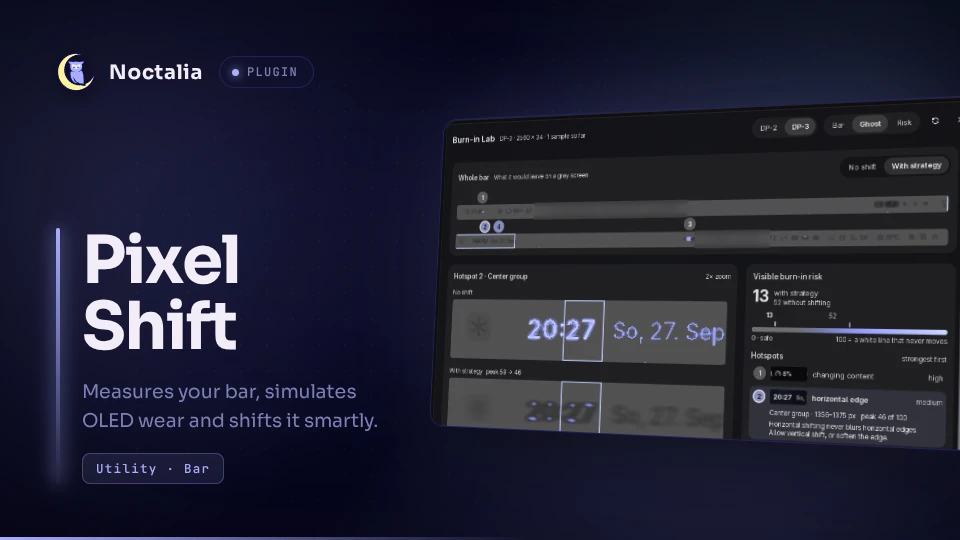
Protects OLED screens from burn-in caused by the bar. Pixel Shift measures your own bar, simulates how its pixels wear over time and moves the bar's groups by a few pixels in the pattern that leaves the faintest ghost. The Burn-in Lab shows where the risk is, how much the strategy removes, and what shifting cannot fix.
Plugin
| Field | Value |
|---|---|
| ID | mgeldi/pixel-shift |
| Entries | Bar widget: spacer; panel: lab; service: engine; shortcut: toggle |
Requirements
Install grim on PATH. It captures the bar strip, so the plugin works on
compositors with wlr-screencopy (Hyprland, niri, sway, labwc, mangowc).
Captures that do not show the bar (a lock screen, a fullscreen window) are recognised from the picture itself and skipped.
Usage
Add the spacers. Add the Pixel Shift spacer widget to your bar four times: as the first item of the left section, the last item of the right section, and the first and last item of the center section. In TOML:
[widget.ps_start]
type = "mgeldi/pixel-shift:spacer"

[widget.ps_center_l]
type = "mgeldi/pixel-shift:spacer"

[widget.ps_center_r]
type = "mgeldi/pixel-shift:spacer"

[widget.ps_end]
type = "mgeldi/pixel-shift:spacer"
and
start = ["ps_start", ...],center = ["ps_center_l", ..., "ps_center_r"],end = [..., "ps_end"].The spacers are invisible. Pixel Shift changes their width over the day, which moves the widgets next to them.
Wait a moment. On first start Pixel Shift measures the bar (it twitches for about a second), then finds the best strategy in the background and starts shifting.
Open the Burn-in Lab:
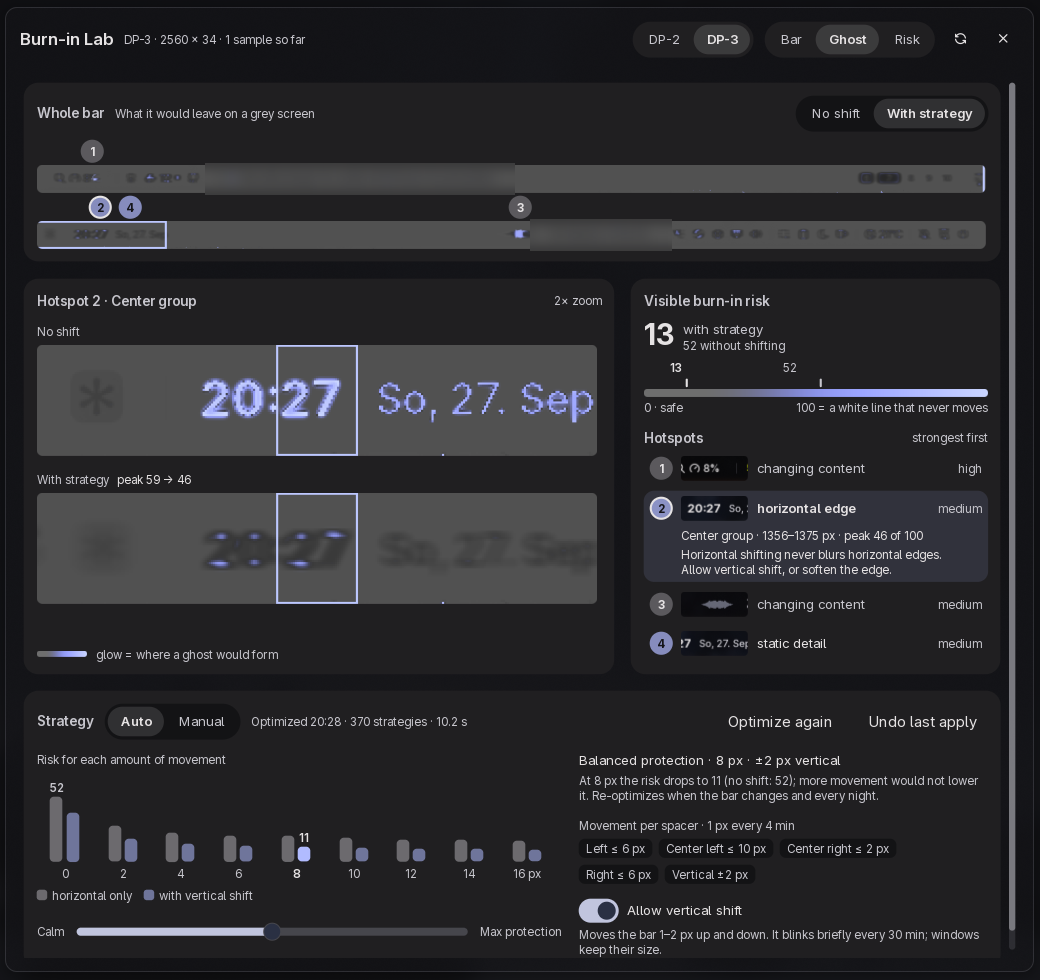
noctalia msg panel-toggle mgeldi/pixel-shift:lab- Ghost shows what the bar would leave on a flat grey screen after long use. Hotspots glow in your theme colour, as bright as their risk. Risk and Bar show the risk map and the bar itself. In the whole-bar view, No shift and With strategy compare the two.
- Visible burn-in risk puts both results on one scale from 0 to 100, where 100 is a white line that never moves.
- Hotspots are the places where the simulated ghost would still show with the current strategy: the up to four strongest spots above 15 of 100, strongest first. Each row shows the bar at that spot, its cause and a level (high from 50, medium from 25, low below). Selecting one frames it up close, before and after, and says what to change, for example a solid fill wider than the shift range. The list also names spacers that sit where they cannot move anything.
- Strategy shows the risk for every amount of movement and what runs on the bar now. In Auto mode Pixel Shift picks the point where more movement stops paying off; moving the Calm ↔ Max protection slider previews another point, Apply to bar makes it live and Discard drops it. Manual sets each spacer's range yourself. Undo last apply goes back to the strategy that was live before.
Pause when you need a still bar. Add the Pixel Shift tile in Settings → Control Center. A click pauses or resumes shifting; a right click opens the lab.
Settings
| Setting | Type | Default | Description |
|---|---|---|---|
panel_profile |
select |
generic |
OLED technology of your screen: generic (blue wears fastest), woled (LG, white subpixel), qdoled (Samsung, all channels from blue emitters). Changes how much each colour channel wears. |
sample_minutes |
int |
10 |
How often the bar is captured to learn what it shows over the day (2–60). |
step_minutes |
int |
4 |
Time between 1 px moves (1–30). Spacers use slightly different multiples so they never move in step. |
max_shift |
int |
16 |
Upper limit in px for any spacer's range (2–32). |
Allow vertical shift is a toggle in the lab, off by default (see Notes).
IPC
noctalia msg plugin mgeldi/pixel-shift:engine all <event> [payload]
| Event | Effect |
|---|---|
pause, resume, toggle |
Stop or restart shifting (all spacers go to width 0 while paused). |
rescan |
Measure the bar of the output shown in the lab again. |
optimize [output] |
Search a new strategy for that output (default: the lab's output). |
lambda <0..1> |
Protection level, 0 = calm, 1 = maximum; previews the strategy. |
apply, revert |
Make the previewed strategy active, or go back to the previous one. |
allow-vertical on|off |
Turn vertical shift on or off. |
sample |
Capture an exposure sample now. |
view bar|ghost|risk, mode none|strategy, output <name>, hotspot <n> |
Drive the lab. |
lab |
Toggle the Burn-in Lab. |
debug |
Write the engine state to the Noctalia log. |
timing on|off |
Log how long the lab takes to answer each command. |
Notes
How it works. For each output, Pixel Shift widens every spacer by a few pixels in
turn and captures the bar with grim, each time right after a fresh reference
capture. The differences show which columns move with which spacer and how far. A
spacer can only move its section by its full width (start and end) or half of it
(center); a measurement that shows anything else (a widget that changed width in
between, such as a CPU percentage) is taken again, and the capture with every spacer
widened must confirm the result. The capture is split into the static background and the
content that moves. A wear model (per-channel brightness to the power of 1.6, weighted
by panel type) turns the bar into a wear map. Visible burn-in risk is the difference
between a pixel's wear and its neighbourhood, at a fine scale (strokes, icon edges) and
a coarse one (blocks, pill cores). An optimiser searches the spacer ranges that
minimise that risk for every movement budget. The strategy is played from the wall
clock: each spacer walks 1 px at a time and spends equal time on every offset.
Samples captured over the day replace the single snapshot once there are enough of
them, so changing content like window titles is weighted by how long it is actually
shown. Samples that do not show the measured bar, such as a lock screen or a
fullscreen window, are skipped, and a measurement that did not see the bar (nothing
moved, or a video under a fullscreen window that only seemed to) never replaces one
that worked. While the bar stays covered, Pixel Shift looks before it measures again,
so the bars do not twitch under a movie. The risk numbers are relative (100 = a 1 px white line that never moves); the
plugin makes no lifetime predictions.
What shifting cannot fix. A solid fill wider than the shift range keeps a
constantly lit core, and horizontal shifting never blurs horizontal edges. The lab
names both. An anchored center widget (anchor = true) pins the whole center section,
so the center spacers cannot move it; set the anchor to false to let the center
group shift.
Spacing. A spacer takes one widget spacing even at width 0; remove a neighbouring gap if you want your old positions back.
Vertical shift (opt-in). When allowed, Pixel Shift writes its own file
zz-pixel-shift.toml in the Noctalia config directory with margin_edge + 2v and
thickness − 2v. The content moves by v px while the reserved space, and every
window, keeps its size. Each step reloads the config, which makes the bar blink
briefly; steps happen every 30 minutes. Turning the option off, pausing, or disabling
the plugin removes the file. If a GUI setting overrides the bar's margin or thickness,
the plugin notices and turns vertical shift off again. Pixel Shift reads your own
margin and thickness whenever the file is absent, so a change you make to them takes
effect the next time the offset returns to 0; turning vertical shift off and on again
picks it up within seconds.
Files written. In the plugin data directory (usually
~/.local/state/noctalia/plugins/data/mgeldi/pixel-shift/):
state.json: strategies, preferences and what was measured per output.layout-<output>.json: the measured groups and how far each spacer moves them.scan-<output>.bin: the full-resolution capture of the bar strip from the last measurement, so whatever the bar showed then (window and media titles too), and the static background derived from it. Each measurement replaces it.exposure-<output>.bin: per-pixel running sums of the accepted samples. It keeps no individual frames, but while it holds a single sample it equals that capture. Written every 6 samples. Lab images (including the Bar view, which shows the latest capture) go to$XDG_RUNTIME_DIR/pixel-shift-render/(memory, emptied at logout; the data directory'srender/when there is no runtime directory). Up to 8 per image are kept for quick switching; all are removed two minutes after the lab closes and when the plugin starts.
Captures are written briefly to $XDG_RUNTIME_DIR/pixel-shift-*.ppm and deleted after
reading. With vertical shift on: zz-pixel-shift.toml in the Noctalia config
directory (written as zz-pixel-shift.toml.tmp and renamed into place).
Processes. grim (during a measurement and every sample_minutes), noctalia msg config-reload (after the vertical override is removed, and once more if Noctalia did
not pick up a new override by itself), noctalia msg settings-open bar (the lab's
onboarding button).
On Noctalia versions without noctalia.getColor, opening the lab runs noctalia msg color-scheme-get, and noctalia theme <wallpaper> when the scheme or wallpaper
changed, to find the theme colour.
Privacy. Only the bar strip and 8 px below it are captured. The capture from the last measurement stays in the data directory (see above) and can show window or media titles; removing the plugin's data directory deletes it. Nothing leaves your machine; the plugin makes no network requests.
Performance. Measuring, optimising and rendering run in small slices between frames, so the shell stays responsive. A search takes a few seconds of CPU per output, spread over a minute or less. For someone who opened the lab in the last two weeks, Pixel Shift prepares its first view in idle time after the data changed, so it opens without waiting; once open, it renders every view of the current strategy in the background, so switching views, modes, hotspots and outputs takes a few tens of milliseconds. Two minutes after the lab closes, its caches are released.
Versions
| Version | Plugin API | Updated |
|---|---|---|
| v1.1.0 latest | 30 | Sep 29, 2026 |
Older versions stay installable on a Noctalia release whose plugin API is below the latest version's.