 Noctalia
About
Mullvad VPN
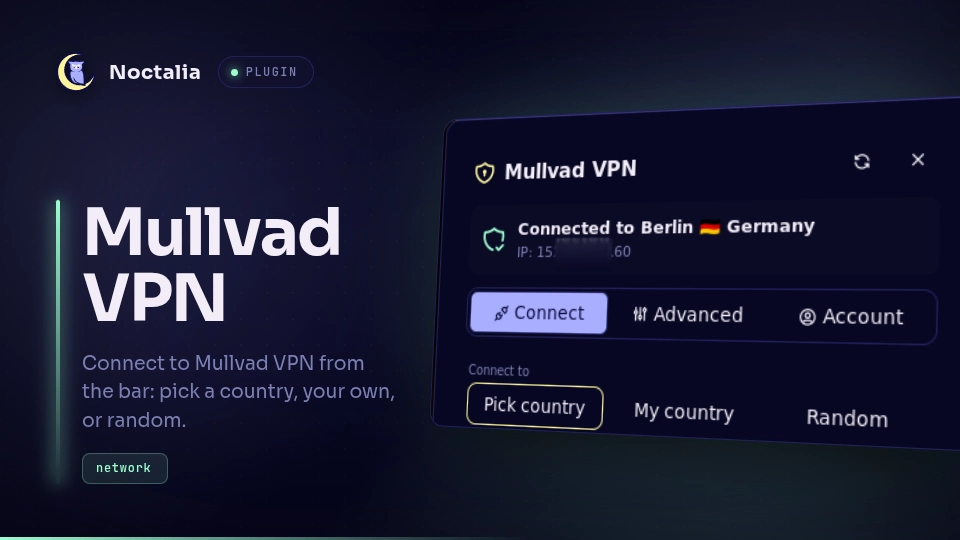
Control the Mullvad VPN from the Noctalia bar and a panel: connect to a country,
to your own country or to a random one, switch relays, turn on lockdown mode,
multihop and auto-connect, and log in or manage your account. The plugin drives
the mullvad command line; it never talks to Mullvad itself.
Plugin
| Field | Value |
|---|---|
| ID | 3dprogramin/mullvad |
| Entries | Bar widget: status; panel: panel; service: service |
Requirements
Install the Mullvad VPN package, which provides the daemon and the CLI. Every
manifest dependency must be on PATH:
mullvad: the Mullvad CLI. Every connect, disconnect, setting and account action runs through it.mullvad-vpn: the Mullvad app. The Advanced tab's Open Mullvad app button launches it.pkexec: asks for your password so Start service, Start at boot and Restart service can runsystemctlas root.systemctl: enables, starts and restartsmullvad-daemon(throughpkexec), and readssystemctl is-enabled mullvad-daemon(nopkexec, read-only) to decide whether to offer Start at boot.uname: reads the running kernel's release once (uname -r, retried until it succeeds, then cached), to tell when Mullvad's firewall failed because the kernel was updated without a reboot.xdg-open: opens your account page on mullvad.net.noctalia: thenoctalia msg config-setcommand that Turn on password prompt runs.
You also need a Mullvad account with time left. Log in from the Account tab, or
with mullvad account login in a terminal.
Password prompt (polkit)
The Start service, Start at boot and Restart service buttons need a
polkit authentication agent to show a password prompt. Noctalia has one built in
(the shell.polkit_agent option). If no agent is running, the plugin says so and
offers two fallbacks:
- Turn on password prompt runs
noctalia msg config-set shell.polkit_agent true, which changes your Noctalia config (see Notes). - Run in terminal opens your terminal and runs one of two fixed commands:
sudo systemctl enable --now mullvad-daemonorsudo systemctl restart mullvad-daemon.
These two processes are not manifest dependencies (sudo and your terminal
come with your system); the plugin runs nothing else through a shell.
Usage
Add the status widget to the bar. It shows a shield and the exit country code
(Off when disconnected). Click it to open the panel, or run:
noctalia msg panel-toggle 3dprogramin/mullvad:panel
The panel has a header and three tabs.
Header shows the tunnel state (Disconnected, Connecting, Connected to {city}, {country}), the visible location when not connected (when Mullvad reports it), the IP, and the fix for whatever is wrong: Start service when the Mullvad service is not running, Open Account tab when you are logged out, Open account page when the account has expired, Turn off lockdown when lockdown is blocking you, and Restart service for firewall errors. Every error is a plain sentence, not a raw code.
Connect tab:
- Pick country connects to a country, optionally to one city; My country connects to the country you are in (or the nearest one with servers; it needs one disconnected look to learn where you are); Random picks a random country each time.
- Until you pick a country, the selects show Mullvad's own relay location setting, so Connect keeps it. When that setting is something the lists cannot show (any country, a custom list, a single server), the country list starts with Current setting, and Connect runs a plain
mullvad connect. - Connect, Disconnect, Reconnect (a new server in the same place) and Switch (to the location picked above while connected).
- Lockdown mode blocks all traffic whenever the VPN is not connected.
- Multihop with an entry country and city.
- Auto-connect connects when the Mullvad service starts.
Advanced tab: a short note and Open Mullvad app. Advanced settings live in the Mullvad app (see Notes).
Account tab: log in with your 16-digit account number (the field is masked); when logged in it shows the number masked except the last four digits, the expiry date, this device and your other devices with Revoke, Redeem a voucher, Log out (with a confirmation) and Open account page. If the account cannot be read (for example offline), it says so and offers Retry.
The panel always shows what the Mullvad daemon reports after an action, not a guess. Changes made outside the plugin (the app, the CLI) show up within about 30 seconds, and sooner for connect and disconnect.
Settings
| Setting | Type | Default | Description |
|---|---|---|---|
show_flags |
bool |
true |
Show country flags in the country lists, the panel header and the bar tooltip (not the bar label). Needs an emoji font: turn it off if flags show as letter pairs. |
show_label |
bool |
true |
Bar widget only: show the exit country code (or Off) next to the shield. |
IPC
The service is the only entry that talks to Mullvad. Panel and bar send it
requests, and you can too (all is required for a service entry):
ID=3dprogramin/mullvad:service

noctalia msg plugin $ID all request '{"action":"refresh"}'
noctalia msg plugin $ID all request '{"action":"connect","mode":"country","country":"se","city":"got"}'
noctalia msg plugin $ID all request '{"action":"connect","mode":"my_country"}'
noctalia msg plugin $ID all request '{"action":"connect","mode":"random"}'
noctalia msg plugin $ID all request '{"action":"disconnect"}'
noctalia msg plugin $ID all request '{"action":"set_lockdown","on":true}'
noctalia msg plugin $ID all request '{"action":"set_multihop","on":true}'
noctalia msg plugin $ID all request '{"action":"set_auto_connect","on":true}'
Every action and its arguments:
| Action | Arguments | Does |
|---|---|---|
refresh |
Re-reads the state and the account. | |
connect |
mode: country (with country, a relay-list code, and optional city), my_country, random, or current |
Sets the relay location, then connects. current sets nothing: a plain mullvad connect under your current relay setting. |
disconnect, reconnect |
mullvad disconnect / mullvad reconnect. |
|
set_lockdown, set_multihop, set_auto_connect |
on: true or false |
Turns the setting on or off. |
lockdown_off |
Same as set_lockdown with on false (the header button). |
|
set_entry |
country: a code or any; optional city (not with any) |
Sets the multihop entry location. |
start_service, enable_service |
pkexec systemctl enable --now mullvad-daemon. |
|
restart_service |
pkexec systemctl restart mullvad-daemon. |
|
run_in_terminal |
for: start_service, enable_service or restart_service |
Runs that action's fixed sudo systemctl command in your terminal. |
enable_polkit_agent |
noctalia msg config-set shell.polkit_agent true. |
|
dismiss_error |
optional key and detail of the error shown |
Clears that error (with no key, whatever is shown). |
open_app, open_account_page |
Launches the Mullvad app / opens the mullvad.net account page. | |
login |
number: the 16-digit account number |
mullvad account login. Prefer the panel or the CLI for it (see Notes). |
logout |
mullvad account logout. |
|
revoke_device |
name: another device of the account |
mullvad account revoke-device. |
redeem |
voucher: the voucher code |
mullvad account redeem. |
Notes
Account number. mullvad account login only accepts the number as a command
argument, so it is briefly visible in ps to your own user's processes while it
runs. That is the same exposure as typing it in a terminal. The plugin never logs
it, saves it, puts it in a notification or shows it unmasked.
Noctalia config. Turn on password prompt changes your Noctalia config: it
sets shell.polkit_agent = true, which turns on Noctalia's built-in polkit agent.
It is the only button that changes anything outside Mullvad.
Files and network. The plugin makes no network calls of its own (Mullvad's CLI
talks to Mullvad). In normal use it writes only real-location.json in its own
data directory: your last real country and coordinates, so My country works
while connected. state.json (a debug copy of the service state, with your IP and
location but never the account number) is written there only while the live-check
script runs: the script creates a debug marker file, the plugin writes
state.json only while that marker exists, and the script removes both when it
ends. Outside that directory the plugin only checks that
/usr/lib/modules/<kernel> exists, to detect a kernel updated without a reboot.
Processes it starts. Every one, as an argument list unless noted:
mullvad, read-only:status --json,account get,account list-devices,relay list,relay get,custom-list list,lockdown-mode get,auto-connect get. Alsomullvad status listen, a long-running stream, started as the fixed stringmullvad status listen(the API takes no argument list).mullvad, changes (only on your action):connect,disconnect,reconnect,relay set location,relay set entry location,relay set multihop,lockdown-mode set,auto-connect set,account login,account logout,account revoke-device,account redeem.systemctl is-enabled mullvad-daemon, read-only, on each refresh.pkexec systemctl enable --now mullvad-daemonandpkexec systemctl restart mullvad-daemon, on Start service, Start at boot and Restart service.uname -r, once (retried until it succeeds).xdg-openwith the mullvad.net account page URL, andmullvad-vpn(the app), on their buttons.noctalia msg config-set shell.polkit_agent true, on Turn on password prompt.sudo systemctl enable --now mullvad-daemonorsudo systemctl restart mullvad-daemon, in your terminal, on Run in terminal: the only shell strings besides the stream above, fixed constants chosen by lookup, never built from request data.
Planned for a later version. Version 1 covers connecting, lockdown, multihop, auto-connect and the account. DNS blocking, tunnel options (quantum resistance, DAITA, MTU, key rotation, IPv6), anti-censorship, local network sharing, relay filters (provider, ownership), custom lists and split tunneling are not in the panel yet. Use the Mullvad app or the CLI for them; the Advanced tab opens the app.
Left out on purpose. These are rarely needed, or too dangerous from a bar
button, so use the mullvad CLI directly: factory-reset, reset-settings,
import-settings / export-settings, api-access, beta-program, log,
relay set custom (manual WireGuard relay), tunnel set allowed-ips, tunnel set userspace, account create and mullvad-problem-report.
Troubleshooting.
- If DNS stops working after you disconnect, Mullvad rewrote
/etc/resolv.conf(it does this when systemd-resolved is not in use). Reconnect your Wi-Fi in NetworkManager to restore it. - If the tunnel fails with a firewall error right after a system update, reboot: the running kernel's modules are gone. The panel says so.
- Flags show as letter pairs: install an emoji font or turn off
show_flags.
Testing
From the repository root:
lua mullvad/tests/run.lua                      # unit suite, no Noctalia needed
python3 mullvad/tests/check-translations.py    # every translation key exists, none unused
python3 mullvad/tests/e2e-live.py              # live checks against the real daemon
python3 mullvad/tests/e2e-live.py --selftest   # the script's own logic, on fake data
e2e-live.py drives the plugin through its IPC entry on a machine with Noctalia
and a logged-in Mullvad daemon. Before it starts it records your relay location,
multihop and entry, lockdown, auto-connect and whether you are connected; it puts
all of that back at the end. With no flags it runs only the checks that are safe
for an unattended run: connect (country, my country, random), disconnect, multihop,
auto-connect, a change made outside the plugin, and the account's refused-voucher
and unknown-device cases. Three groups need a flag and a person watching:
--lockdown (turns lockdown on and off, which blocks traffic), --daemon (stops and
restarts the Mullvad service, with a password prompt) and --account (logs out and
back in using MULLVAD_ACCOUNT from the environment, and creates a new device).
Besides the plugin's IPC and the mullvad CLI, the live script:
- creates the
debugmarker in the plugin's data directory before its first request (so the plugin writesstate.json), and removes the marker andstate.jsonwhen it ends, also on Ctrl-C; - in the lockdown check, fetches
https://am.i.mullvad.net/jsonto see whether traffic is blocked; - in the daemon check (
--daemon, user-run), runssudo systemctl stop mullvad-daemon, andsudo systemctl start mullvad-daemon(plussudo systemctl enable mullvad-daemonif it was enabled) if the daemon is still stopped afterwards.
Versions
| Version | Plugin API | Updated |
|---|---|---|
| v0.1.0 latest | 43 | Nov 5, 2026 |
Older versions stay installable on a Noctalia release whose plugin API is below the latest version's.