
About
Inventory Manager
Inventory Manager tracks product stock across three linked buckets per product - Available, In use, and Damage - plus a computed total, with categories, drag-to-reorder, and low-stock alerts on top. It ships two UI surfaces - a bar widget and a panel - backed by one headless service that owns the product list, persists it to disk, and publishes live state that both surfaces read from.
Plugin
| Field | Value |
|---|---|
| ID | nilsonlinux/inventory-manager |
| Entries | Service: inventory-service; bar widget: inventory-badge; panel: inventory-panel |
Usage
Bar Widget
Add the inventory-badge bar widget to your bar. It shows a package icon in
the accent color while stock is healthy, and switches to a red icon with a
count badge once any product's Available quantity falls at or below the
low-stock threshold. Hovering shows a tooltip with the current status (no
products / all stocked / N product(s) low in stock).
- Left click opens the Inventory Manager panel.
- Right click force-refreshes the published state and shows a brief "Refreshing..." notification.
You can also open the panel over IPC:
noctalia msg panel-toggle nilsonlinux/inventory-manager:inventory-panel
Panel
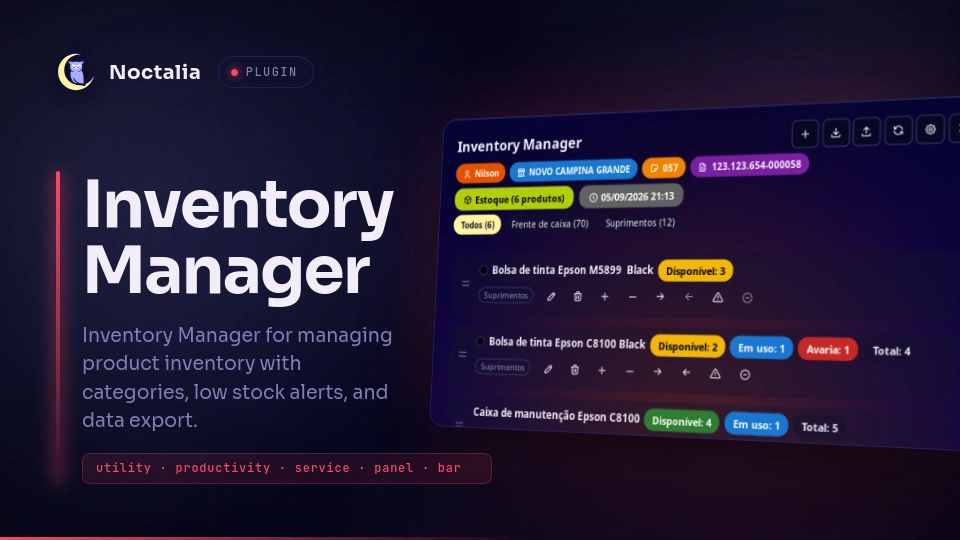
The panel opens floating at top-center by default. It lists every product as a card. The name row shows the color dot (auto-detected from a color word in the product name, e.g. "Black", "Vermelho"), the name in bold, an Available capsule (colored by stock level), and - only while they hold stock - In use and Damage capsules, plus a neutral Total capsule (only shown once a product actually has stock in In use or Damage, since otherwise it would just repeat the Available number; can be turned off entirely, see Settings). Hovering a card - including its action buttons - highlights it.
Category tabs above the list ("All" plus one tab per category with stock) filter the visible cards; each tab's count is the category's total across all three buckets.
The header's gear button opens this plugin's settings directly (same as Settings → Plugins → Inventory Manager → gear), without leaving the panel.
Adding / editing a product - the + header button (or "Add your first
product" on an empty list) opens the form; the pencil icon on a card opens it
pre-filled for editing. Name and Quantity sit on one row, Category on the
next, Save/Cancel below. Quantity here only sets the product's Available
bucket - In use and Damage start at zero for a new product and are only ever
changed from the card itself, never overwritten by editing the form.
- Category switches between two small controls: a dropdown listing every category ever used (even ones with no stock left) with a button next to it to switch to typing a brand-new category instead, and vice-versa. Whichever one is active is the only one shown, keeping the row compact.
Stock buckets - all three live on the card's single action row, next to Edit and Delete:
- Available - free stock.
+receives new stock (increases the total);-writes stock off (decreases the total). - In use - units currently checked out. Moving a unit here (arrow-right) takes it out of Available; moving it back (arrow-left) returns it. Only enabled while there's Available stock to draw from.
- Damage - damaged/faulty units. Works the same way as In use (the warning-triangle button moves a unit in, circle-minus moves it back to Available).
Available, In use and Damage always add up to the card's Total - only
Available's own +/- change that total; moving units into or out of In use
and Damage just relabels stock that was already counted.
Reordering - when "Manual sorting" is enabled (see Settings), each card shows a drag handle on the left; drag a card and drop it between any two others to move it, even while a category tab is filtering the list - drop targets are matched by the neighboring products' identity, not by a raw position, so the item lands in the right spot in the full list regardless of what's currently filtered. Turning "Manual sorting" off instead sorts the list alphabetically by name and hides the drag handles.
Deleting a product - the trash icon on a card asks for inline confirmation before removing it.
Export / Import - the header's download/upload buttons write and read a
timestamped estoque_YYYYMMDD_HHMMSS.json snapshot of the whole product list,
including all three buckets per product. Both use the export_folder setting
below (falling back to the plugin's data folder if it's left blank), so
exported files stay where import expects them. Import replaces every
current product with the file's contents, so it opens an inline
confirmation banner first and only runs after you confirm.
Low-stock notifications - whenever a product's Available quantity drops
to or below the threshold, a single notification fires for that product (not
repeated on every refresh); it clears once the product is restocked above the
threshold and can fire again later if it drops low again. Governed by
enable_low_stock_alerts and low_stock_threshold below.
Settings
Plugin
| Setting | Type | Default | Description |
|---|---|---|---|
manual_sorting |
bool |
true |
Enables drag-and-drop reordering; when off, the list sorts alphabetically instead. |
low_stock_threshold |
int |
3 |
Available quantity at or below which a product counts as low stock. |
enable_low_stock_alerts |
bool |
true |
Whether low-stock notifications are shown. |
show_total_quantity |
bool |
true |
Shows the Total capsule on cards where a product has stock in In use or Damage. Disable to hide it entirely. |
store_name |
string |
"" |
Store name shown as a header capsule in the panel. |
store_number |
string |
"" |
Store/branch number shown as a header capsule in the panel. |
store_cnpj |
string |
"" |
Store CNPJ shown as a header capsule in the panel. |
ti_name |
string |
"" |
Responsible IT technician's name, shown as a header capsule in the panel. |
export_folder |
string |
"" |
Folder used by Export/Import. Accepts ~ for your home folder. Leave blank to use the plugin's default data folder. |
Bar Widget
| Setting | Type | Default | Description |
|---|---|---|---|
glyph |
glyph |
"package" |
Icon shown on the bar widget. |
show_low_stock_badge |
bool |
true |
Shows or hides the red count badge when stock is low. |
Notes
The service also accepts an add IPC event with a JSON payload
({"name": "...", "category": "...", "quantity": 0}) to add a product from
outside the panel, e.g. from a shortcut or another plugin. quantity here
sets the new product's Available bucket; In use and Damage start at zero.
Versions
| Version | Plugin API | Updated |
|---|---|---|
| v1.0.1 latest | 15 | Oct 1, 2026 |
Older versions stay installable on a Noctalia release whose plugin API is below the latest version's.