 Noctalia
About
CMF Buds
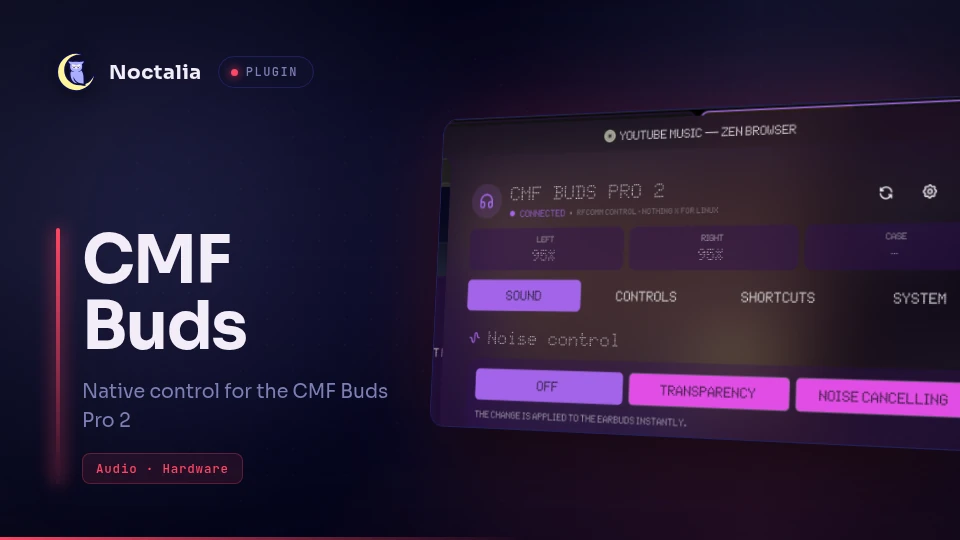
Native control for Nothing CMF Buds Pro 2 (model B172) from the Noctalia bar, without the Nothing X mobile app.
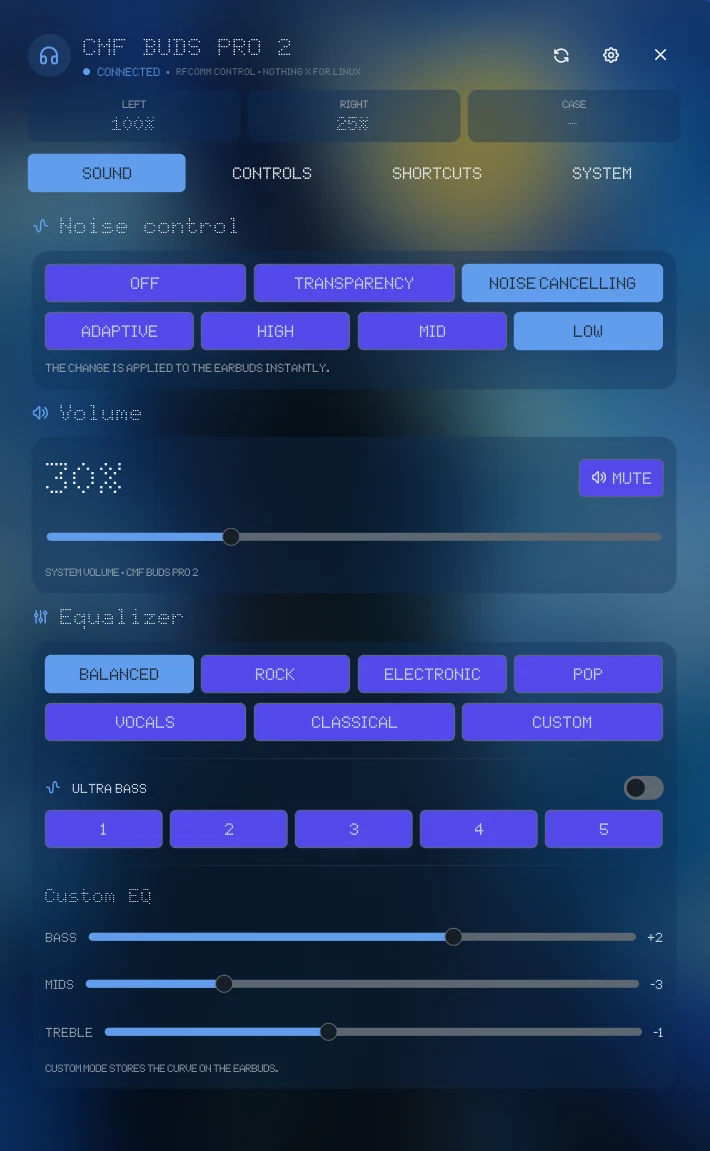
The plugin talks the vendor RFCOMM protocol directly through a Python daemon and exposes what the earbuds can change: active noise control, system volume, equalizer, Ultra Bass, case-dial gestures, spatial audio, in-ear detection, low-latency mode, dual connection, battery, ring my buds, and the fit test.
Plugin
| Field | Value |
|---|---|
| ID | faminec/cmf-buds |
| Entries | Bar widget: widget; panel: panel; service: service |
Requirements
| Command | Package | Required | Used for |
|---|---|---|---|
python3 |
python |
Yes | Runs the daemon and the RPC client (bin/budsctl.py). Version 3.8 or newer: the sources are checked against that syntax, and the threading server that Python 3.12 added is assembled from the standard library pieces when the interpreter does not have it. |
bluetoothctl |
bluez-utils |
Yes | Discovers the paired device and manages its Bluetooth connection. |
pactl |
pipewire-pulse or pulseaudio-utils |
Yes | Reads and sets the system sink volume and mute state. |
notify-send |
libnotify |
No | Shows the toast for local shortcuts whose Enable notification toggle is on. Without it the shortcut still runs. |
hyprctl |
hyprland |
No | Only resolves the {output} placeholder in a local shortcut command, on Hyprland. |
dbus-monitor |
dbus |
No | Watches the media-control buttons of the earbuds over D-Bus (the wheel and the media keys). Without it the case dial and the media keys do not reach the plugin. |
The Nothing/CMF earbuds must already be paired in BlueZ. The plugin opens an RFCOMM channel to the earbuds (Bluetooth classic); it does not pair devices for you.
Local shortcuts can require or forbid keyboard modifiers (for example
Super+wheel). To know whether Ctrl, Alt, Shift or Super is held, the
daemon reads the keyboard events from /dev/input/event*, so the user running
Noctalia must be able to read those devices (normally membership of the
input group). Only the state of the modifier keys is kept; no other key is
stored or logged. The Keyboard access note below has the details and the
security implication.
Usage
- Pair your CMF Buds Pro 2 with the computer using BlueZ.
- Enable the plugin in Noctalia. The
serviceentry starts and keeps the RFCOMM daemon alive. - Add the
widgetbar entry. Left click opens the panel, the mouse wheel adjusts system volume, and right click cycles ANC (Off → Transparency → ANC). - Use the panel tabs (Sound, Controls, Shortcuts, System) to configure the earbuds and local shortcut actions.
Open the panel directly:
noctalia msg panel-toggle faminec/cmf-buds:panel
Screenshots
Settings
| Setting | Type | Default | Description |
|---|---|---|---|
device_name |
string |
CMF Buds Pro 2 |
Bluetooth device name to match when discovering the earbuds. |
device_mac |
string |
"" |
Bluetooth MAC address to prefer. Leave empty to auto-detect a paired Nothing/CMF device. |
glyph |
glyph |
headphones-filled |
Icon shown in the bar widget. |
volume_step |
int |
1 |
Volume percentage change per mouse-wheel step on the bar widget (1–25). |
wheel_adjust |
bool |
true |
Allow the mouse wheel on the bar widget to adjust volume. |
poll_seconds |
int |
20 |
How often the daemon polls earbud state, in seconds (20–300). |
IPC
Panel entry (faminec/cmf-buds:panel):
# Refresh state from the daemon
noctalia msg plugin faminec/cmf-buds:panel all refresh

# Switch the active panel tab: sound | controls | actions | system
noctalia msg plugin faminec/cmf-buds:panel all tab sound
Bar widget entry (faminec/cmf-buds:widget):
# Toggle the panel
noctalia msg plugin faminec/cmf-buds:widget all toggle

# Refresh the widget state
noctalia msg plugin faminec/cmf-buds:widget all refresh

# Set ANC mode: off | transparency | anc
noctalia msg plugin faminec/cmf-buds:widget all anc anc

# Connect to the earbuds
noctalia msg plugin faminec/cmf-buds:widget all connect
Notes
- Compositor/platform: the plugin is Linux-only and depends on BlueZ/RFCOMM and a Pulse-compatible audio stack (
pactl). It is not compositor-specific beyond Noctalia's normal plugin environment. - No network access: all communication is local (Bluetooth RFCOMM to the earbuds and local process/IPC communication). The plugin does not download or execute remote code.
- Keyboard access (
/dev/input): while at least one enabled local shortcut uses a modifier restriction (require/forbid), the daemon opens every/dev/input/event*device and reads the raw keyboard events, only to track whether the modifier keys are held down. The events of other keys are discarded and never stored or logged. Reading those devices requires permission on them, which in practice means belonging to theinputgroup; that group also lets any process of the user read every keyboard, so add yourself to it only if you accept that trade-off. Without access the plugin still works: the shortcuts that do not use modifiers keep working and the panel shows No access to /dev/input. When no enabled rule uses a modifier restriction, the devices are not opened at all. - Files written: runtime state and IPC data are stored under the Noctalia plugin data directory (typically
~/.local/state/noctalia/plugins/data/faminec/cmf-buds/):state.json(daemon/UI state),daemon.sock(local RPC socket), anddaemon.log. - Processes spawned:
python3runsbin/budsctl.pyindaemon,rpc, andstopmodes; the daemon usesbluetoothctlandpactl, and the local shortcut engine usespactl,hyprctlandnotify-sendas listed under Requirements. Local shortcut actions configured in the panel run user-defined shell commands through/bin/sh -c. - Multipoint volume limitation: volume is per audio source. When audio is playing from another connected device (e.g. a phone), the plugin can only control the PC sink via
pactl/AVRCP; it cannot change the other device's volume because the Nothing RFCOMM protocol exposes no volume-set command. - License: MIT (see
plugin.toml).
Versions
| Version | Plugin API | Updated |
|---|---|---|
| v1.1.0 latest | 43 | Nov 16, 2026 |
Older versions stay installable on a Noctalia release whose plugin API is below the latest version's.