
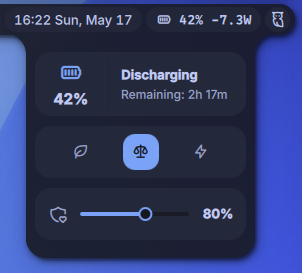
Battery & Power Management Plugin
A lightweight, efficient battery status bar widget and interactive control popup. This plugin displays real-time battery diagnostics (including dynamic power draw in Watts) and provides desktop controls to switch system power profiles or adjust hardware battery charge thresholds safely without needing root privileges.
About
Battery & Power Management Plugin
A lightweight, efficient battery status bar widget and interactive control popup designed for the Noctalia desktop shell environment.
This plugin displays real-time battery diagnostics (including dynamic power draw in Watts) and provides desktop controls to switch system power profiles or adjust hardware battery charge thresholds safely without needing root privileges.
Features
- Live Diagnostics Bar: Displays current charge percentage, charging/discharging state, and accurate power consumption or charging rate dynamically calculated in Watts (
W). - Power Profiles Switcher: Quick native toggle buttons utilizing
powerprofilesctlbackend to alternate betweenpower-saver,balanced, andperformancestates. - Hardware Charge Threshold Slider: A fluid, customized multi-step UI slider to set the battery charge limit (inclusive range from
50%to100%) directly interacting with the kernel via/sys/class/power_supply/BAT0/charge_control_end_threshold.
System Requirements & Prerequisites
To ensure the threshold operations and power profile modifications function smoothly, the following system utilities must be available:
Power Profiles Daemon: Ensure
powerprofilesctlis installed and running on your system.# Verify daemon status systemctl status power-profiles-daemon.serviceSupported Hardware Platform: A modern laptop kernel exposure that supports hardware threshold ceilings via standard
sysfs(e.g., Lenovo ThinkPad running kernel5.17+).
Installation
Install via Settings: Open your Noctalia settings panel, navigate to the plugins section, and install this plugin directly from the interface.
Configure Udev Permissions: To allow the widget to adjust battery thresholds without root access, execute the provided setup script:
cd ~/.config/noctalia/plugins/battery-and-power-management/
chmod +x setup_rules.sh
sudo ./setup_rules.sh
Apply Changes: Log out and log back into your session to apply group membership changes. If the widget does not appear immediately, reload your Noctalia configuration via the desktop settings or restart your session.
Diagnostics and Monitoring
To verify your system state or monitor live events and verify that the plugin correctly captures kernel-level interactions:
Check Current Kernel Value:
cat /sys/class/power_supply/BAT0/charge_control_end_thresholdInspect Shell Runtime Logs:
Monitor stdout logs for validation errors or property mismatches when interacting with the custom UI sliders.