
World Clock
Display time from multiple timezones around the world with automatic rotation.
About
World Clock
A Noctalia Shell plugin to display time from multiple timezones around the world with automatic rotation.



Features
- 🌍 Multiple Timezones: Display up to 5 timezones simultaneously
- 🔄 Automatic Rotation: Cycles through enabled timezones automatically
- 🌐 38 Cities Available: Major cities from Americas, Europe, Asia, Africa, and Oceania
- ⚙️ Configurable Settings:
- Rotation interval (1-60 seconds)
- Time format (24h/12h with or without seconds)
- Enable/disable individual timezones
- 🌎 Internationalization: Fully translated to 12 languages
- 🎨 Clean UI: Intuitive bar widget and configuration panel
Available Cities
Americas
New York, Los Angeles, Chicago, São Paulo, Mexico City, Buenos Aires, Toronto, Vancouver, Lima, Bogotá
Europe
London, Paris, Berlin, Madrid, Rome, Moscow, Amsterdam, Stockholm, Istanbul, Athens
Asia
Tokyo, Shanghai, Dubai, Singapore, Hong Kong, Mumbai, Bangkok, Seoul, Jakarta, Manila
Oceania
Sydney, Melbourne, Auckland, Brisbane
Africa
Cairo, Johannesburg, Lagos, Nairobi
Supported Languages
- English (en)
- Portuguese (pt)
- Spanish (es)
- French (fr)
- German (de)
- Italian (it)
- Japanese (ja)
- Chinese Simplified (zh-CN)
- Russian (ru)
- Dutch (nl)
- Turkish (tr)
- Ukrainian (uk-UA)
Installation
- Open Noctalia Shell Settings
- Go to Plugins section
- Search for "World Clock"
- Click Install
Or manually:
git clone https://github.com/noctalia-dev/noctalia-plugins.git
cd noctalia-plugins/world-clock
# Copy to your Noctalia plugins directory
Usage
- Add the widget: Add World Clock to your bar from the widgets menu
- Configure timezones: Click on the widget to open the configuration panel
- Add timezones: Click the
+button to add a timezone (max 5) - Select cities: Choose from 38 available cities using the dropdown
- Toggle timezones: Use the toggle switch to enable/disable specific timezones
- Adjust settings:
- Set rotation interval (how long each timezone is displayed)
- Choose time format (24h or 12h, with or without seconds)
Configuration
Default Settings
{
  "timezones": [
    {
      "name": "New York",
      "timezone": "America/New_York",
      "enabled": true
    }
  ],
  "rotationInterval": 5000,
  "timeFormat": "HH:mm"
}
Time Format Options
HH:mm- 24-hour format (e.g., 14:30)HH:mm:ss- 24-hour with seconds (e.g., 14:30:45)h:mm A- 12-hour format (e.g., 2:30 PM)h:mm:ss A- 12-hour with seconds (e.g., 2:30:45 PM)
Technical Details
- API: Uses JavaScript Date API with
toLocaleTimeString()for timezone calculations - Translations: Plugin-specific translations via
pluginApi.tr() - Storage: Settings are automatically persisted across restarts
- Performance: Efficient 1-second update timer for time display
Screenshots
Bar Widget
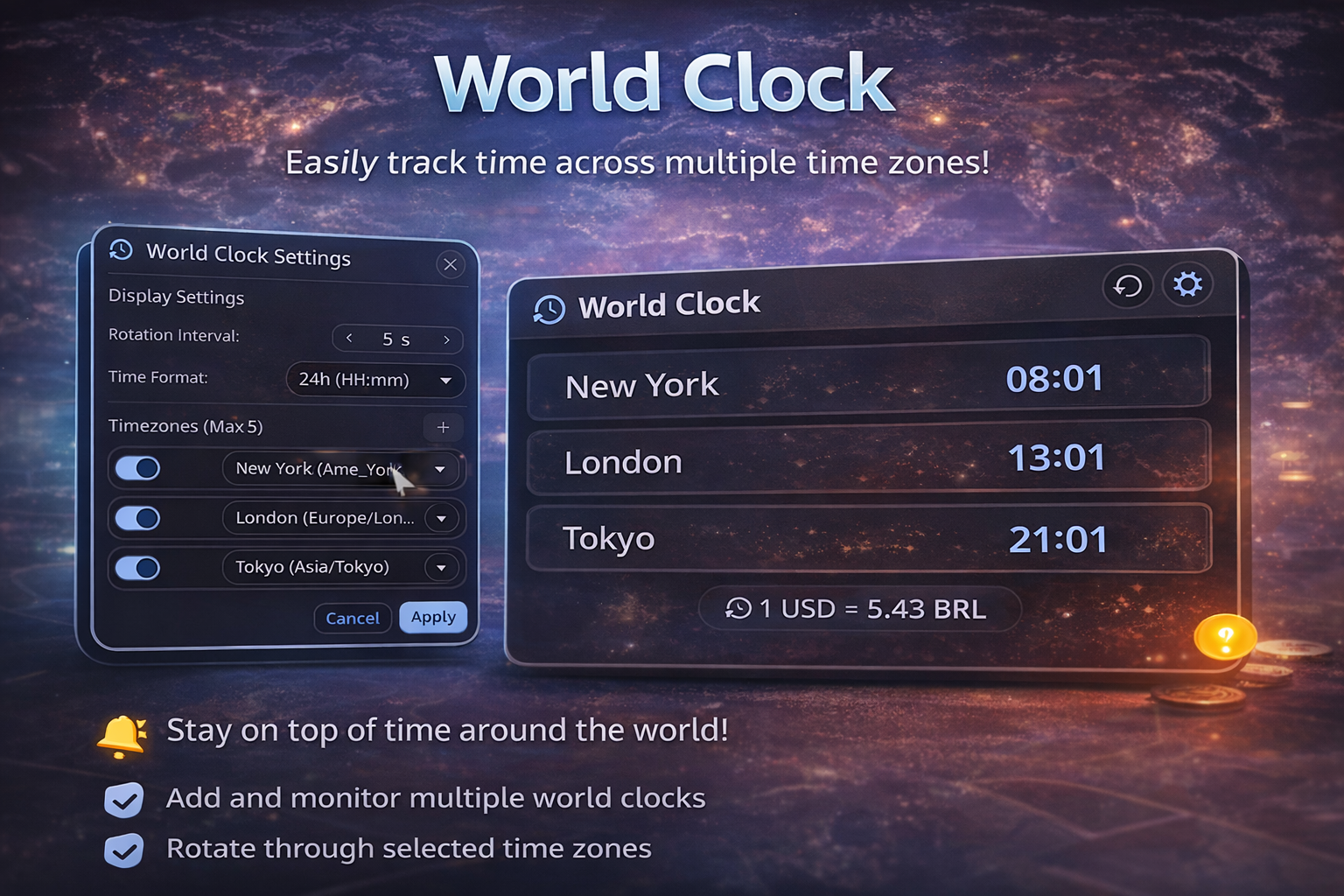
The widget displays the current city name and time, rotating through enabled timezones.
Configuration Panel
Full-featured panel with:
- Display settings (rotation interval, time format)
- Timezone list with toggle, city selector, and delete button
- Visual feedback for enabled/disabled timezones
Development
File Structure
world-clock/
├── BarWidget.qml       # Bar widget component
├── Panel.qml           # Configuration modal panel
├── Settings.qml        # Settings page component
├── Main.qml           # Main entry point
├── manifest.json      # Plugin metadata
├── settings.json      # Default settings
├── README.md          # This file
└── i18n/              # Translation files
    ├── en.json
    ├── pt.json
    ├── es.json
    └── ...
Translation Structure
{
  "world-clock": {
    "title": "World Clock Settings",
    "tooltip": {
      "click": "Click to configure"
    }
  },
  "city": {
    "new-york": "New York",
    "london": "London"
  }
}
Contributing
Contributions are welcome! Please feel free to submit a Pull Request.
Adding New Cities
- Add city to
availableTimezonesarray inPanel.qmlandSettings.qml - Add translation keys to all language files in
i18n/ - Test with different time formats and rotation intervals
License
MIT License - see LICENSE file for details
Credits
- Author: Lokize
- Repository: https://github.com/noctalia-dev/noctalia-plugins
- Noctalia Shell: https://noctalia.dev
Changelog
v1.0.0 (2026-01-04)
- Initial release
- Support for 38 cities worldwide
- 12 language translations
- Configurable rotation and time formats
- Clean and intuitive UI