
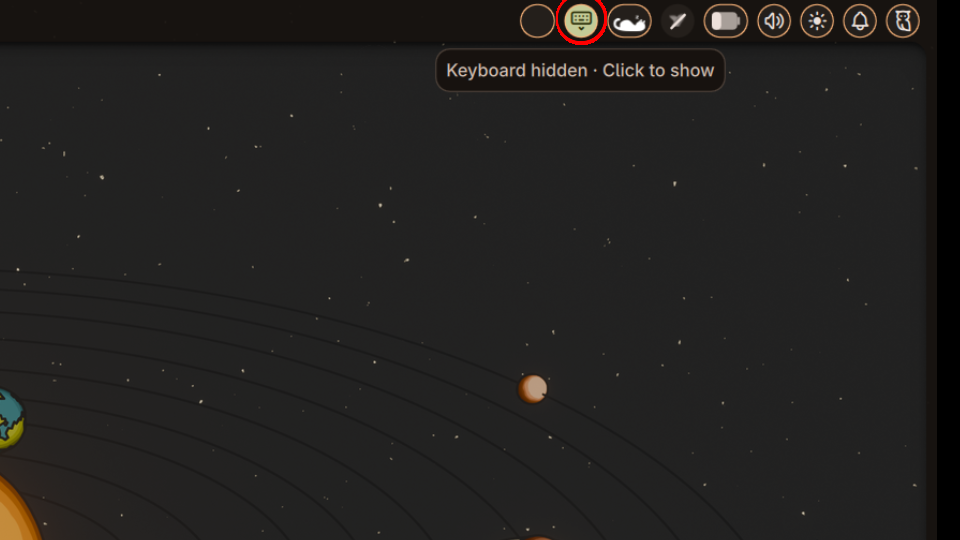
OSK Toggle
Toggle an on-screen keyboard (Squeekboard or wvkbd) with live availability detection, hover icons, and configurable settings. Supersedes squeekboard-toggle.
About
OSK Toggle
A Noctalia bar widget for toggling an on-screen keyboard. Supports Squeekboard and wvkbd, with automatic backend detection.
Features
- Auto-detects which OSK is available at startup, or use a fixed backend
- Live availability detection — shows an alert icon if the keyboard is no longer available
- Hover icons indicate the action you'll take (show/hide), not just the current state
- Configurable per-widget settings
Requirements
- Noctalia ≥ 4.4.3
- One of:
- Squeekboard — must be running and accessible via D-Bus (
sm.puri.OSK0); requiresgsettingsanddconf - wvkbd — any binary variant (
wvkbd-mobintl,wvkbd-comp,wvkbd-abc, etc.) on yourPATH
- Squeekboard — must be running and accessible via D-Bus (
Settings
| Setting | Default | Description |
|---|---|---|
backend |
auto |
auto, squeekboard, or wvkbd |
hideWhenUnavailable |
false |
Hide the widget entirely when the OSK is unavailable |
disableHoverIcon |
false |
Always show the state icon; never show the directional hover icon |
wvkbdBin -l full,special --landscape-layers full,special |
wvkbd-mobintl |
wvkbd binary name or path (wvkbd backend only), can use flags too |
Backend selection
auto— at startup, checks if Squeekboard's D-Bus name (sm.puri.OSK0) is owned. Uses Squeekboard if yes, wvkbd otherwise. Detection happens once; it does not switch automatically if availability changes mid-session.squeekboard— always use Squeekboard.wvkbd— always use wvkbd.
How it works
Squeekboard backend
Toggle state is controlled via gsettings set org.gnome.desktop.a11y.applications screen-keyboard-enabled. State changes are tracked live with dconf watch, and Squeekboard's D-Bus presence is monitored continuously with dbus-monitor so the widget reacts if Squeekboard stops or starts.
Tablet Mode (2-in-1 Laptops)
This widget complements automated tablet-mode switching.
For Niri configure switch-events in ~/.config/niri/config.kdl to auto-toggle the keyboard:
switch-events {
    tablet-mode-on { spawn "bash" "-c" "gsettings set org.gnome.desktop.a11y.applications screen-keyboard-enabled true"; }
    tablet-mode-off { spawn "bash" "-c" "gsettings set org.gnome.desktop.a11y.applications screen-keyboard-enabled false"; }
}
The widget will reflect these changes in real-time without conflicts. Manual toggles via the widget work independently of tablet-mode automation.
wvkbd backend
The plugin takes ownership of the wvkbd process: on load it kills any pre-existing instance and relaunches it with --hidden. Show/hide is then controlled by sending SIGUSR1 / SIGUSR2 directly to the owned process. When the plugin unloads, the process is stopped.
Known Issues
OSK closes when opening settings from the bar (touchscreen)
When opening plugin settings from within the bar or shell interface on a touchscreen, the on-screen keyboard may close or stop receiving input. Opening settings through the general Noctalia settings panel works fine. This is a shell-level bug unrelated to this plugin.
Workaround until a fix lands upstream: open the following file with a text editor (requires root):
/etc/xdg/quickshell/noctalia-shell/Modules/MainScreen/PopupMenuWindow.qml
Find line 39 and change OnDemand to Exclusive:
- WlrLayershell.keyboardFocus: hasDialog ? WlrKeyboardFocus.OnDemand : WlrKeyboardFocus.None
+ WlrLayershell.keyboardFocus: hasDialog ? WlrKeyboardFocus.Exclusive : WlrKeyboardFocus.None
Then restart the shell.
License
MIT — see LICENSE.